


The Ethora app: team messaging for Android, web and your own server
One app for every Ethora workspace. Sign in to your organisation’s workspace on Ethora Cloud, or to a server you host yourself. Listed on Google Play as Ethora Mobile; iOS is in App Store review.
 Scan to install on Android
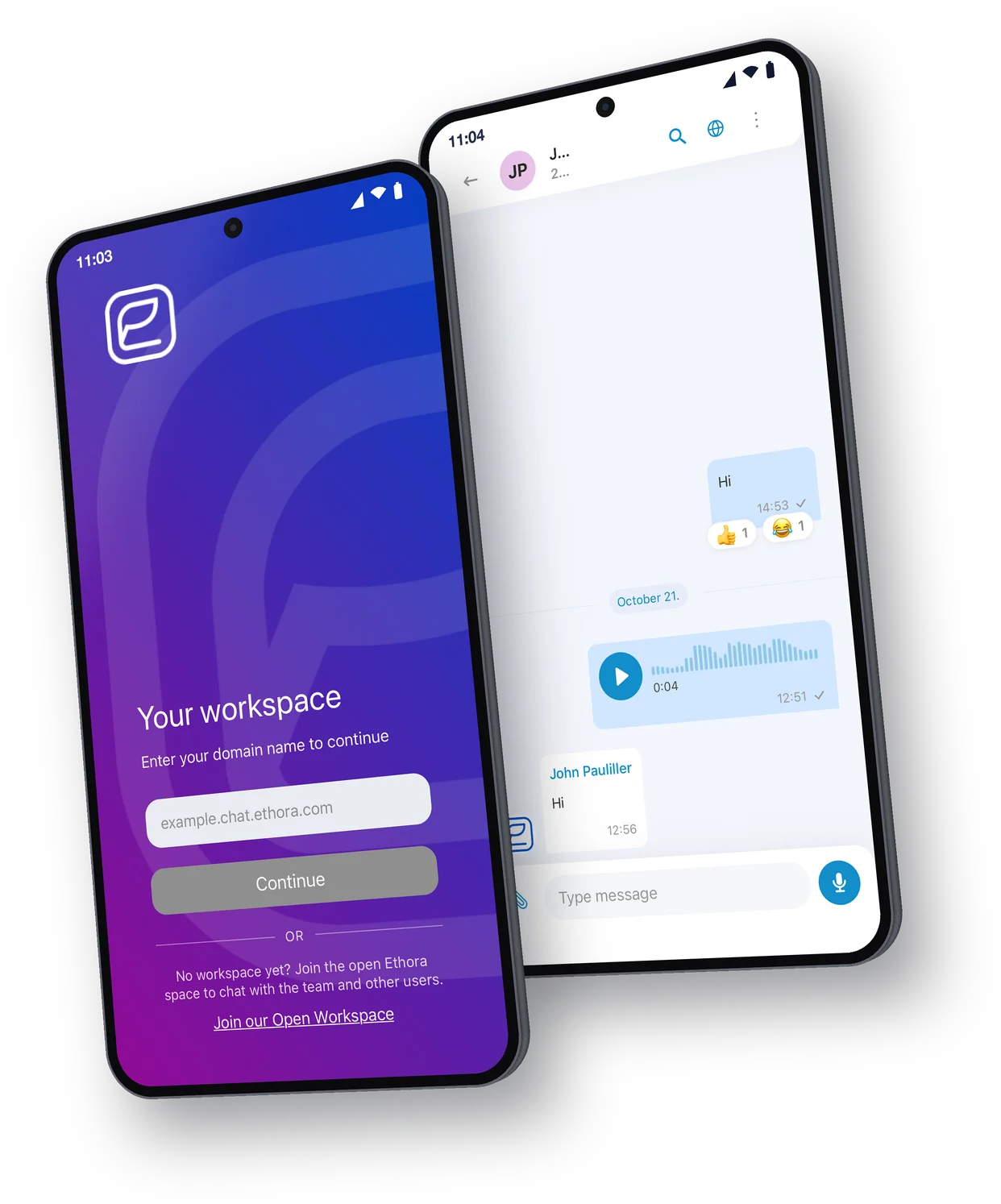
Get the Ethora app
On Android, install Ethora from Google Play. The iPhone app is in App Store review. On any computer, open the web app in your browser, or install it as an app from pwa.chat.ethora.com: on desktop from the browser, on iPhone in Safari with Share, then Add to Home Screen.
First screen
Sign in to your workspace
The first thing the app asks for is your workspace address. Type it in and you land in your organisation’s chat, with its name, logo and rooms.
- Ethora Cloud workspace: yourname.chat.ethora.com
- The open Ethora space: no workspace yet? Join it from the first screen to chat with the team and other users
- A self-hosted Ethora server: your own address, for example chat.yourcompany.com
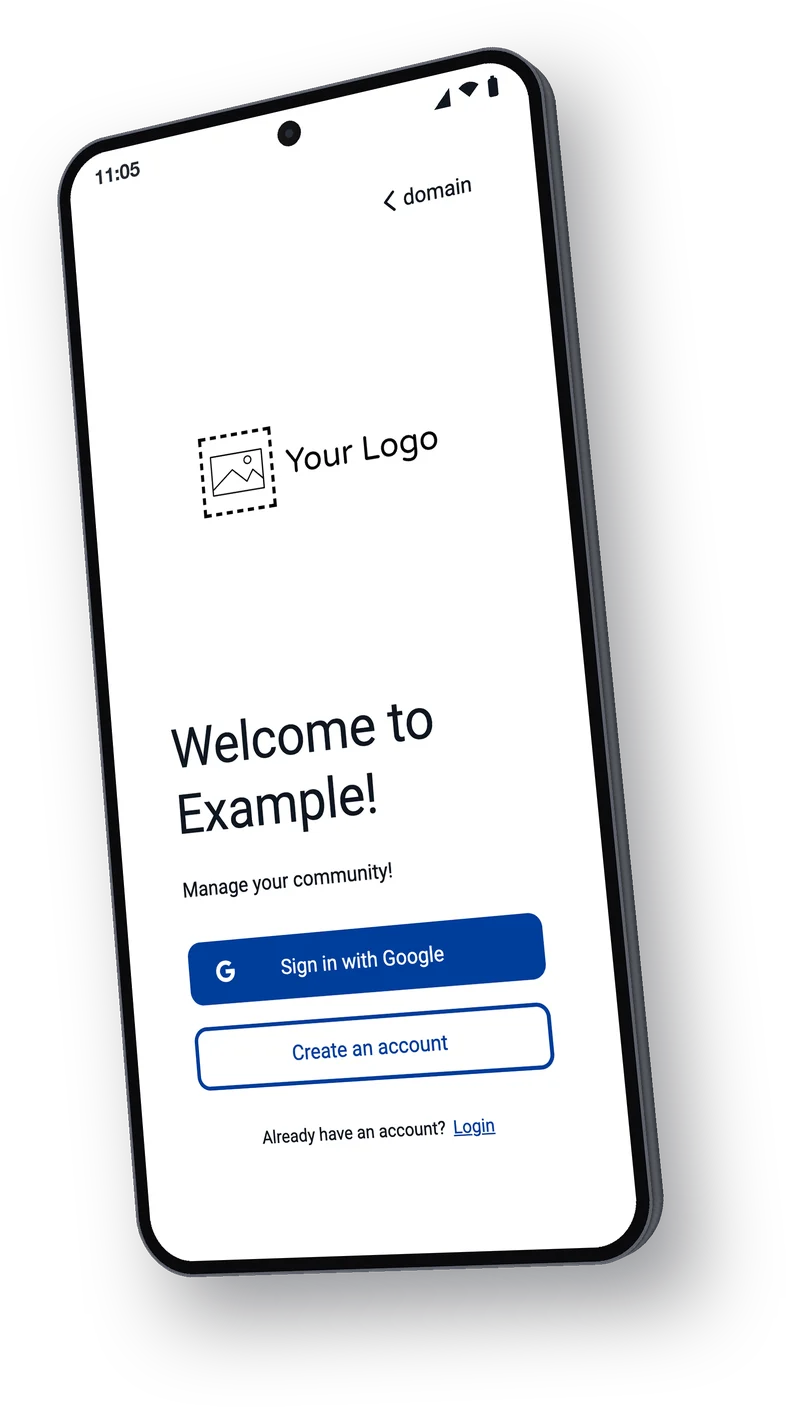
What you can do in the app
Everything your team needs to talk, share and get answers, in one messaging app.
Direct and group chats
Real-time one-to-one conversations and group rooms for teams and communities.
Photos, videos and files
Share images, video and documents with a person or the whole room.
AI assistants in the chat
AI assistants answer questions right inside the conversation.
Message translation
Translate messages into the chat language you choose.
Push notifications
Get notified about new messages, even when the app is closed.
Light and dark themes
Switch between light and dark to match your phone.
Your users on mobile today
No app to build and no store review to wait for. Create a workspace, invite people, and they install Ethora and enter the workspace address. Your name, colours and default rooms come from the workspace settings in the Ethora admin panel.
- Create a workspace on Ethora Cloud or your own server
- Invite your team, customers or community
- They install Ethora and enter your workspace address
When you want your own store listing, the same stack ships as a white-label app.
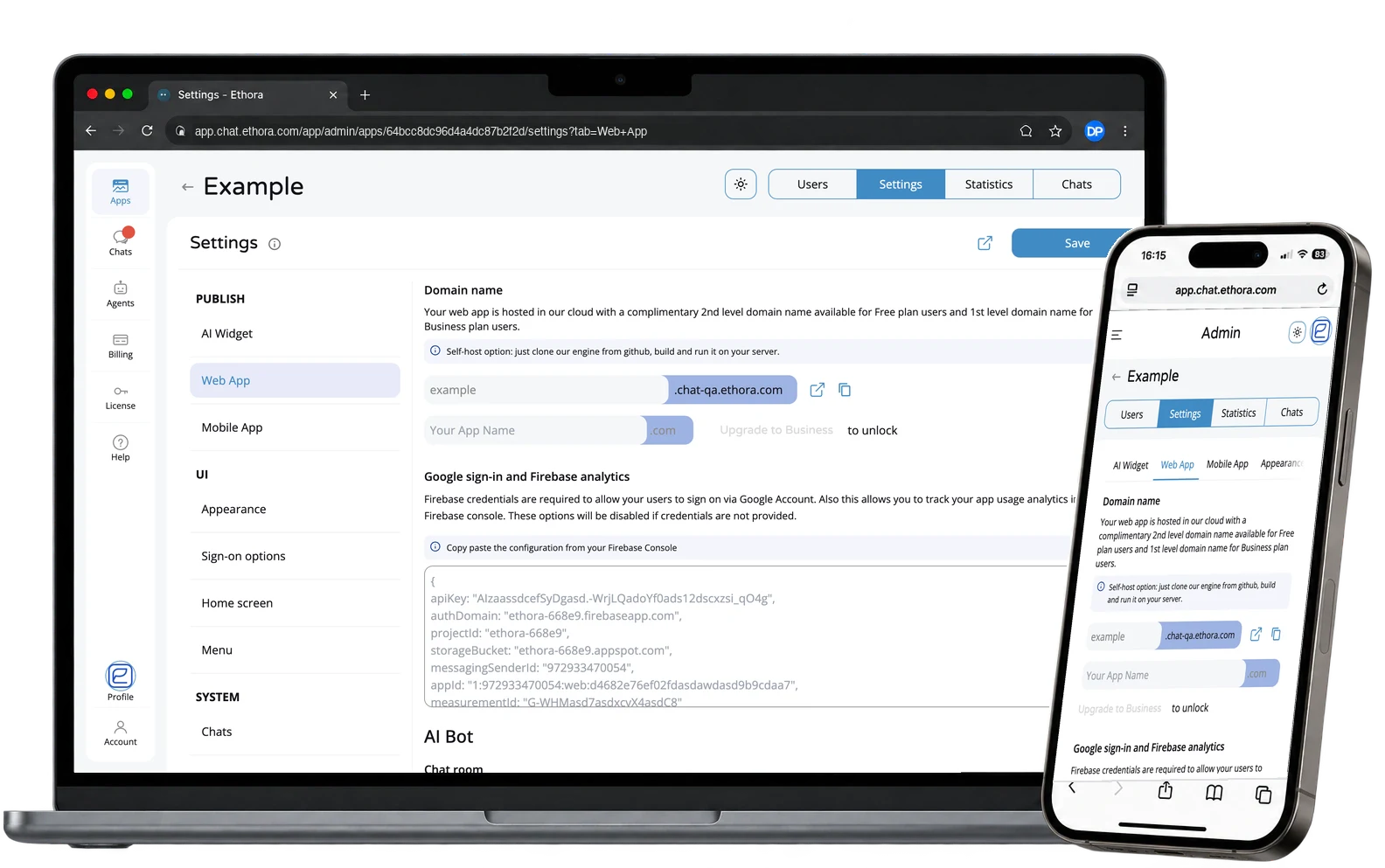
Self-hosted
For self-hosted installs
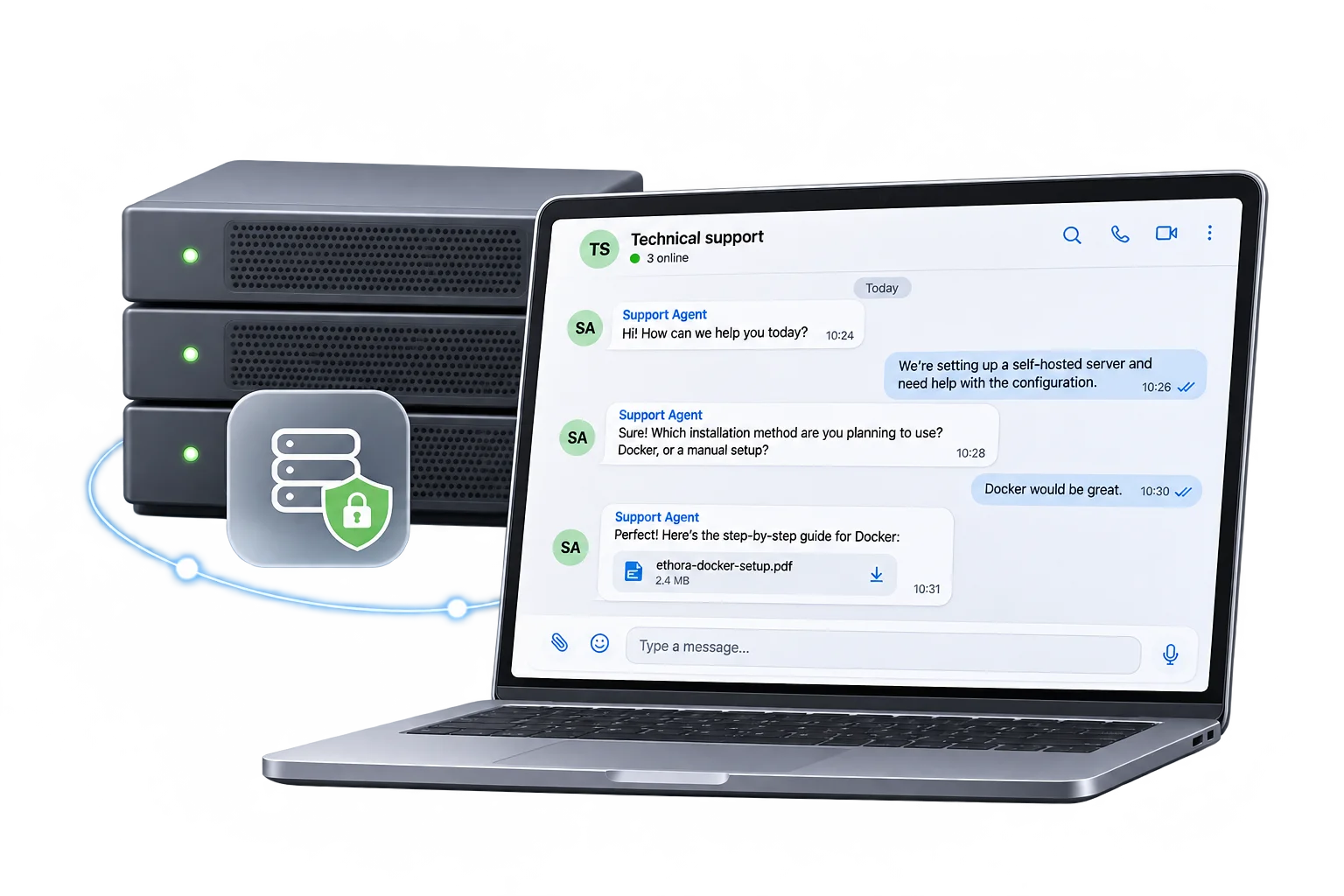
The Ethora app works with Ethora Core installs and dedicated servers. Your users enter your server’s address on the first screen, and messages and files stay on your server.
- No separate app build for your own server
- The same app your users would get from any Ethora workspace
- Data stays on infrastructure you control
Run your own: the self-hosted chat server, self-hosted team chat, and every install option on Get Ethora.
Built on the open-source Ethora SDKs
The React Native chat SDK powers the Ethora app. Teams that build their own app use the same SDKs for Android, iOS and the web.
React Native Chat SDK
The SDK behind the Ethora app. One codebase for Android and iOS.
Read moreAndroid Chat SDK
Kotlin and Java messaging library for your own Android app.
Read moreiOS Chat SDK
Swift-native messaging component for iOS apps.
Read moreReact Chat SDK
Open-source chat component for web apps.
Read moreFAQ
Can I use it with my self-hosted Ethora server?
Yes. On the first screen, enter your server’s address instead of an Ethora Cloud workspace, for example chat.yourcompany.com. The app works with Ethora Core installs and dedicated servers, and your messages and files stay on your server. See Get Ethora for every way to install the server.
Is there an iPhone app?
The iOS app is in App Store review. Until it is listed, iPhone users can open the web app, or install it from Safari: open pwa.chat.ethora.com, tap Share, then Add to Home Screen.
Can I publish it under my own brand?
Yes. The Ethora app shows your workspace’s name, colours and rooms. When you want your own name and icon in the stores, the same stack ships as a white-label app.
Does it work with AI agents?
Yes. AI assistants added to your workspace answer questions right inside the conversation. You set them up in the Ethora admin panel; see the AI SDK.
Where is my data stored?
On the server behind your workspace. For an Ethora Cloud workspace that is Ethora’s cloud; for a self-hosted install it is your own server, in the cloud account or data centre you choose. The app connects to that server; push notifications are delivered through Google’s Firebase Cloud Messaging.
