Add chat to an Android app (Kotlin)
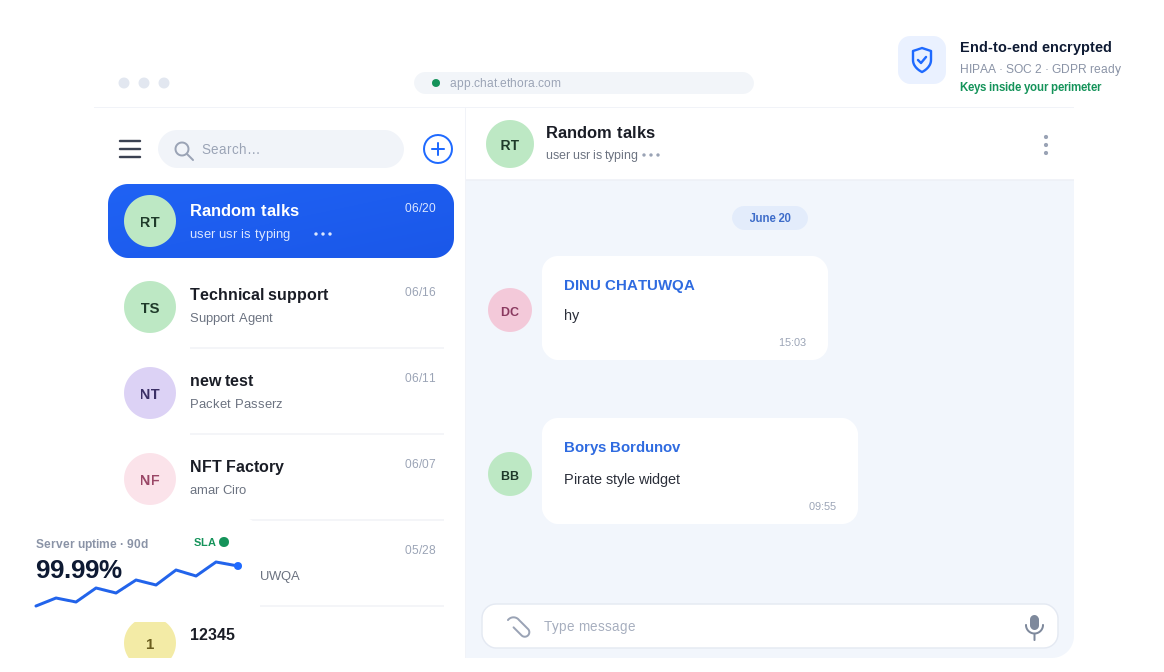
The Ethora Android SDK is a Jetpack Compose chat UI: room list, room view, media, reactions, typing indicators and push hooks. This guide adds it to a Kotlin app, connects it to your Ethora app and signs a user in.
Using Claude Code or Codex?
Let Claude Code or Codex do it
Our open-source skill for Claude Code and Codex runs the steps on this page for you: it adds the SDK from JitPack and the Gradle settings it needs (Kotlin, compileSdk, desugaring), signs in to Ethora from your terminal to create or pick an app, writes ethora.properties and, with your OK, adds the sign-in token route to your backend. Then it checks the setup.
/plugin marketplace add dappros/chat-ethora-skill /plugin install ethora-skill@ethora
codex plugin marketplace add dappros/chat-ethora-skill codex plugin add ethora-skill@ethora
Then ask your agent to add Ethora chat to this app. Cursor and other agents: npx skills add dappros/chat-ethora-skill.
Requirements
minSdk 26, JVM target 17.- Kotlin 2.2 or newer (the SDK is built with 2.3), Android Gradle Plugin 8.7.0 or newer, Gradle 9.4.1. Android Studio’s new-project template still ships Kotlin 2.0.21, so raise it first.
- The Compose compiler plugin
org.jetbrains.kotlin.plugin.composein your app module. Kotlin 2.x no longer usescomposeOptions.kotlinCompilerExtensionVersion. - Core library desugaring enabled. The SDK is built with it.
compileSdk35 or higher. With 34 the build fails incheckDebugAarMetadata: one of the SDK’s dependencies requires API 35.
The SDK ships only a Compose entry point. There is no View or XML widget: in a Views app, host the chat in a ComposeView.
Install from JitPack
Add the JitPack repository:
dependencyResolutionManagement {
    repositoriesMode.set(RepositoriesMode.FAIL_ON_PROJECT_REPOS)
    repositories {
        google()
        mavenCentral()
        maven(url = "https://jitpack.io")
    }
}
Then add the SDK to your app module. The latest release tag is v1.0.44, and the version string keeps the v prefix.
plugins {
    id("com.android.application")
    id("org.jetbrains.kotlin.android")
    id("org.jetbrains.kotlin.plugin.compose")
}

android {
    compileSdk = 35
    defaultConfig { minSdk = 26 }
    compileOptions {
        sourceCompatibility = JavaVersion.VERSION_17
        targetCompatibility = JavaVersion.VERSION_17
        isCoreLibraryDesugaringEnabled = true
    }
    buildFeatures { compose = true }
}

dependencies {
    implementation("com.github.dappros:ethora-sdk-android:v1.0.44")
    coreLibraryDesugaring("com.android.tools:desugar_jdk_libs:2.1.4")
    // plus your usual Compose dependencies (Compose BOM, activity-compose)
}
Use the coordinate com.github.dappros:ethora-sdk-android exactly. The older com.github.dappros.ethora-sdk-android:ethora-component form returns 404.
Add network permissions to AndroidManifest.xml:
<uses-permission android:name="android.permission.INTERNET" />
<uses-permission android:name="android.permission.ACCESS_NETWORK_STATE" />
Initialize the SDK once per process
Call EthoraChatSdk.initialize from Application.onCreate, before any chat screen opens. It sets up persistence, the stores and the push manager, and repeat calls are safe.
import android.app.Application
import com.ethora.chat.EthoraChatSdk

class MyApplication : Application() {
    override fun onCreate() {
        super.onCreate()
        EthoraChatSdk.initialize(this)
    }
}
Register the class with android:name=".MyApplication" on <application> in your manifest. Don't initialize the SDK from an Activity context or from inside a composable.
Configure the SDK for your Ethora app
ChatConfig (package com.ethora.chat.core.config) holds the connection settings. The SDK has no built-in default server. If baseUrl or any of the three xmppSettings fields is missing, Chat shows an error screen instead of connecting.
import com.ethora.chat.core.config.ChatConfig
import com.ethora.chat.core.config.JWTLoginConfig
import com.ethora.chat.core.config.XMPPSettings

fun ethoraConfig(userJwt: String? = null) = ChatConfig(
    appId = "YOUR_APP_ID",
    baseUrl = "https://api.chat.ethora.com/v1",   // Ethora Cloud; your own server when self-hosted
    customAppToken = "JWT <YOUR_APP_TOKEN>",
    xmppSettings = XMPPSettings(
        xmppServerUrl = "wss://xmpp.chat.ethora.com/ws",
        host = "xmpp.chat.ethora.com",
        conference = "conference.xmpp.chat.ethora.com"
    ),
    jwtLogin = userJwt?.let { JWTLoginConfig(token = it, enabled = true) }
)| Field | Required | Purpose |
|---|---|---|
baseUrl | Yes | Ethora API URL. The SDK appends paths such as users/client and chats/my to it. |
xmppSettings.xmppServerUrl | Yes | XMPP WebSocket URL. |
xmppSettings.host | Yes | XMPP domain. |
xmppSettings.conference | Yes | Domain for chat rooms. |
appId | If your server needs it | Sent as the x-app-id header on login, room list and push calls. |
customAppToken | For email sign-in | App token sent as Authorization on login requests. |
jwtLogin | One sign-in method | See below. |
The values above are for Ethora Cloud (the same ones npx @ethora/setup saves for a Cloud profile); on a self-hosted server use your own API and XMPP addresses. To create an account, an app and test users from the terminal, run npx @ethora/setup in the sample app. It creates your Ethora account and app, provisions test users and writes ETHORA_APP_ID, ETHORA_APP_TOKEN, ETHORA_API_BASE_URL and the ETHORA_XMPP_* values into the project.
Sign a user in
Chat uses the first available source, in this order: its user parameter, config.userLogin, config.jwtLogin, then a JWT saved from an earlier session. The SDK has no built-in email/password screen.
JWT (recommended)
Your backend issues a JWT for the signed-in user. Pass it as ethoraConfig(userJwt = jwt). The SDK exchanges it at POST {baseUrl}/users/client (header x-custom-token), stores the session and refreshes tokens automatically. To mint the JWT on your server, see Authentication.
Email and password
The sample app signs users in with email and password before it shows Chat. This path needs customAppToken.
// EmailSignIn.kt (same calls as the sample app)
import com.ethora.chat.core.config.ChatConfig
import com.ethora.chat.core.networking.ApiClient
import com.ethora.chat.core.networking.AuthAPIHelper
import com.ethora.chat.core.store.ChatStore
import com.ethora.chat.core.store.UserStore

suspend fun signInWithEmail(config: ChatConfig, email: String, password: String) {
    ChatStore.setConfig(config)
    ApiClient.setBaseUrl(config.baseUrl!!, config.customAppToken)
    val response = AuthAPIHelper.loginWithEmail(email = email, password = password) // throws on failure
    UserStore.setUser(response)
}
After it returns, show Chat with ethoraConfig() (no jwtLogin).
A user you already have
Pass an Ethora User (com.ethora.chat.core.models.User) as Chat(config, user = user) or userLogin = UserLoginConfig(enabled = true, user = user).
Show the chat
import android.os.Bundle
import androidx.activity.ComponentActivity
import androidx.activity.compose.setContent
import androidx.compose.foundation.layout.fillMaxSize
import androidx.compose.ui.Modifier
import com.ethora.chat.Chat

class MainActivity : ComponentActivity() {
    override fun onCreate(savedInstanceState: Bundle?) {
        super.onCreate(savedInstanceState)
        val config = ethoraConfig(userJwt = "<USER_JWT_FROM_YOUR_BACKEND>")
        setContent {
            Chat(config = config, modifier = Modifier.fillMaxSize())
        }
    }
}
By default Chat shows the room list, then the selected room. For a single-room screen, turn off the room list and pass the room JID. The header back button is then hidden.
Chat(
    config = config.copy(disableRooms = true),
    roomJID = "roomname@conference.example.com"
)
Push notifications (FCM)
Once a user is signed in and connected, the SDK subscribes them and their rooms to push. Firebase setup stays in your app:
- Add
google-services.jsonand apply thecom.google.gms.google-servicesplugin. - Declare
android.permission.POST_NOTIFICATIONSand request it at runtime on Android 13+. - Forward the FCM token and the room JID from your messaging service:
// MyFirebaseMessagingService.kt (register for com.google.firebase.MESSAGING_EVENT)
import com.ethora.chat.core.push.PushNotificationManager
import com.google.firebase.messaging.FirebaseMessagingService
import com.google.firebase.messaging.RemoteMessage

class MyFirebaseMessagingService : FirebaseMessagingService() {
    override fun onNewToken(token: String) {
        PushNotificationManager.setFcmToken(token)
    }

    override fun onMessageReceived(message: RemoteMessage) {
        (message.data["jid"] ?: message.data["chatJid"])?.let {
            PushNotificationManager.setPendingNotificationJid(it)
        }
        // build and show your notification here
    }
}
EthoraChatSdk.initialize already calls PushNotificationManager.initialize. Because onNewToken fires only when the token changes, the sample app also forwards FirebaseMessaging.getInstance().token at startup. To open a room from a notification tap, put its JID in the notification_jid intent extra and pass that to setPendingNotificationJid in your Activity. The SDK opens the room once rooms load.
Troubleshooting
- Error screen such as "ChatConfig.xmppSettings is required": a required field is missing or malformed (
baseUrl,xmppServerUrl,hostorconference). - Build asks for core library desugaring: enable it and add
desugar_jdk_libsas shown above. Module was compiled with an incompatible version of Kotlin. The binary version of its metadata is 2.3.0: your project uses Kotlin older than 2.2 (the Android Studio template ships 2.0.21). Raise the Kotlin version and the Compose compiler plugin to 2.2 or newer.checkDebugAarMetadatasays a dependency requires compiling against version 35 or later: setcompileSdk = 35or higher.- Duplicate
META-INFfiles inmergeDebugJavaResource: add them topackaging.resources.excludes. The sample app excludesMETA-INF/versions/9/OSGI-INF/MANIFEST.MF,META-INF/DEPENDENCIESand the license and notice files. IllegalStateException: There are multiple DataStores active for the same file: the SDK was initialized from an Activity or composable. MoveEthoraChatSdk.initializetoApplication.onCreate.- Room list empty or unread always 0: the user isn't signed in, or
baseUrl,appIdor a token is wrong. - Chat stuck offline: check
xmppSettingsand that the WebSocket URL is reachable from the device. If DNS fails on an emulator, setdnsFallbackOverrides = mapOf("xmpp.example.com" to "203.0.113.10"). - 401 on login or upload: check the user token and
customAppToken. - Push not delivered:
google-services.jsonmust match yourapplicationId, the FCM token must reachsetFcmToken, and notification permission must be granted.
Next steps
- Authentication: issue user JWTs from your backend.
- Rooms: work with chat rooms, including the room JIDs used in single-room mode.
- SDK README: unread badges, connection state, theming, event hooks and logout.
Stuck or planning something bigger?
Book 15 minutes with the team, or open an issue on GitHub. Self-hosting and enterprise questions are welcome.