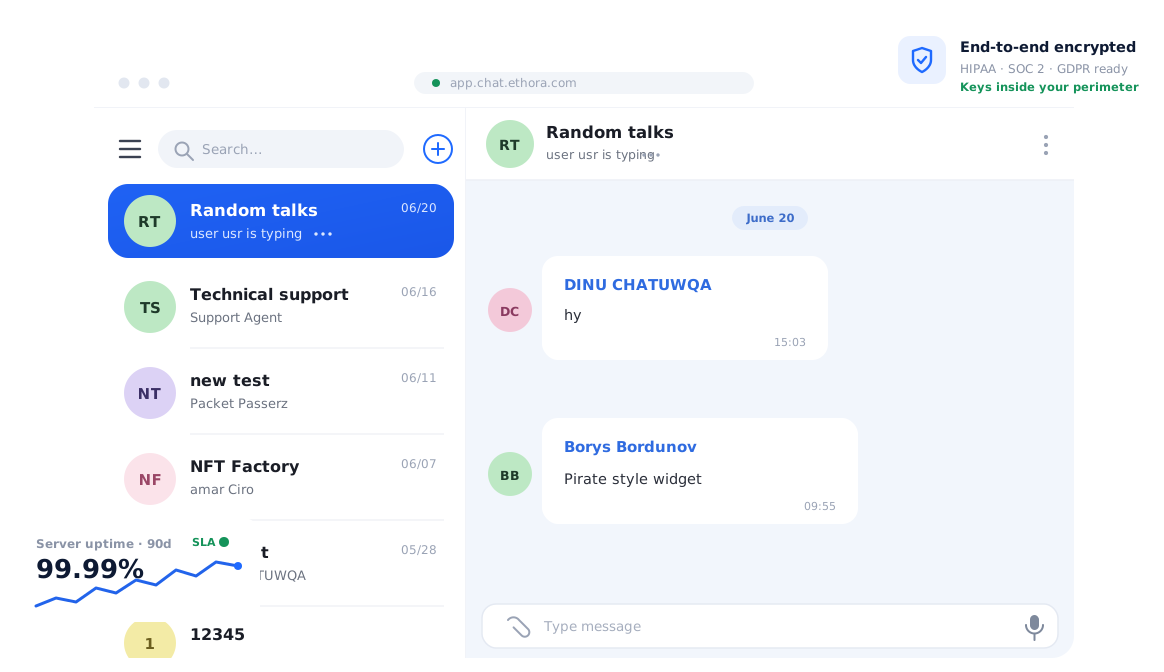
We’re excited to announce a game-changing addition to the Ethora platform: the “AI Bot“ tab – a powerful new feature that lets you deploy intelligent, context-aware chatbots directly into your applications without writing a single line of code.
The AI Bot builder is released as part of Ethora AI Agents SDK.
What’s New: AI Bot Tab in Your Admin Panel
When you log into your Ethora admin panel, you’ll notice a new “AI Bot” tab in the left sidebar. This feature is now available to all Ethora users across all accounts and applications, making AI-powered customer support and engagement accessible to everyone:
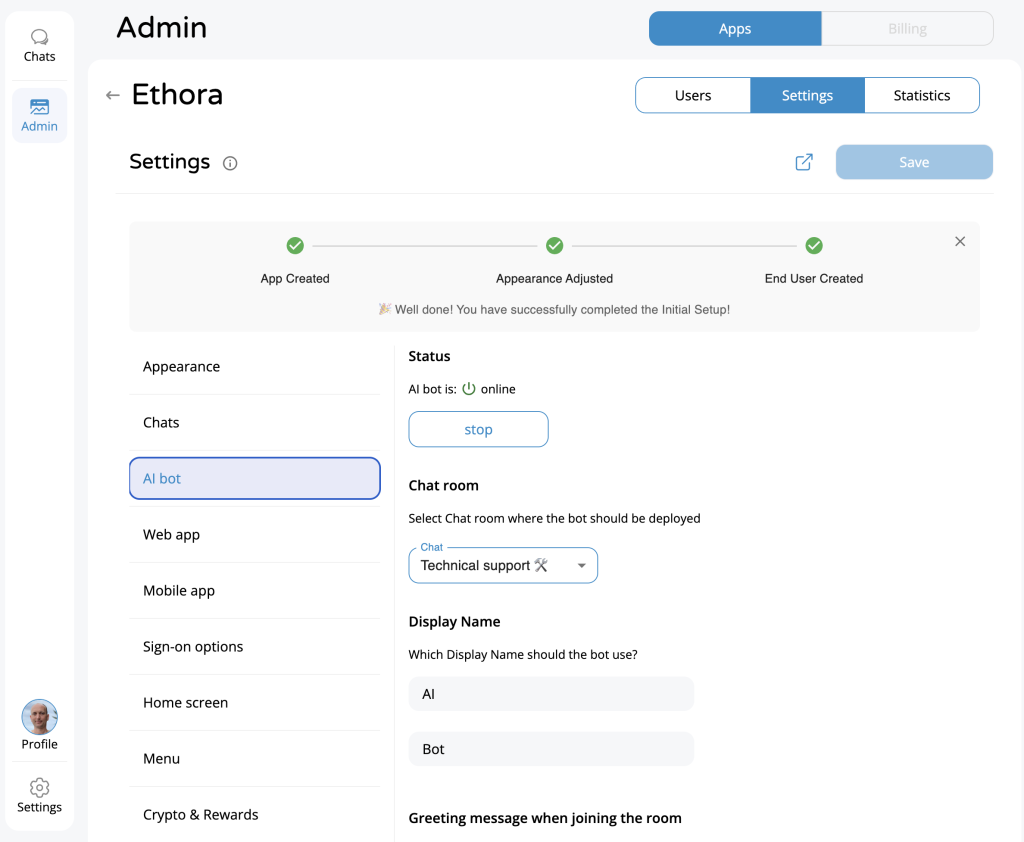
Key Features at a Glance
Easy Setup and Configuration
- Chatroom Selection: Choose which chatroom in your app will host the AI bot
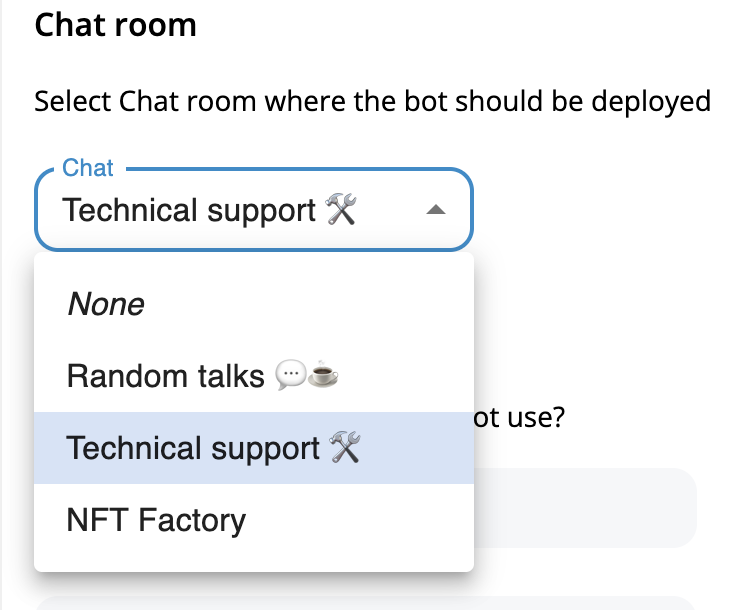
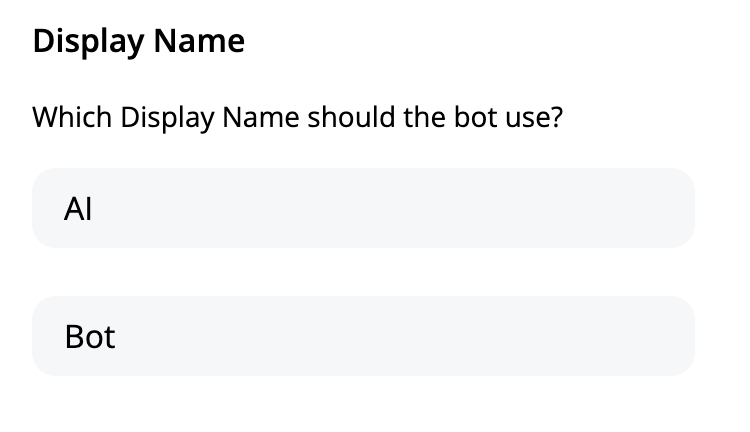
- Custom Display Name: Set a first and last name for your bot (e.g., “AI Bot” or “Support Assistant”)
- Greeting Messages: Configure whether your bot announces its presence or joins silently
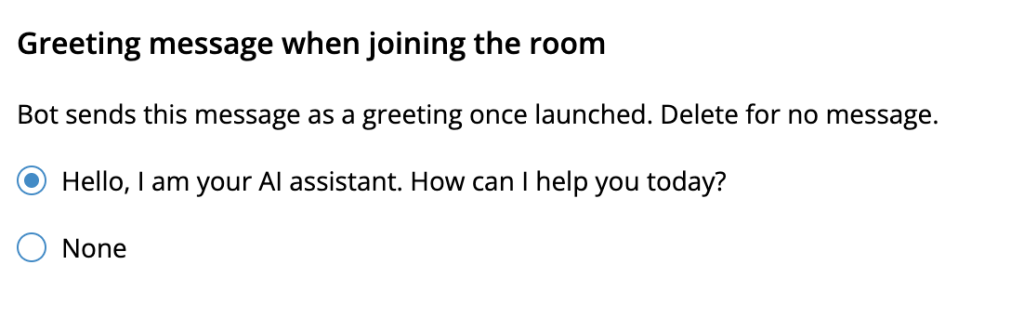
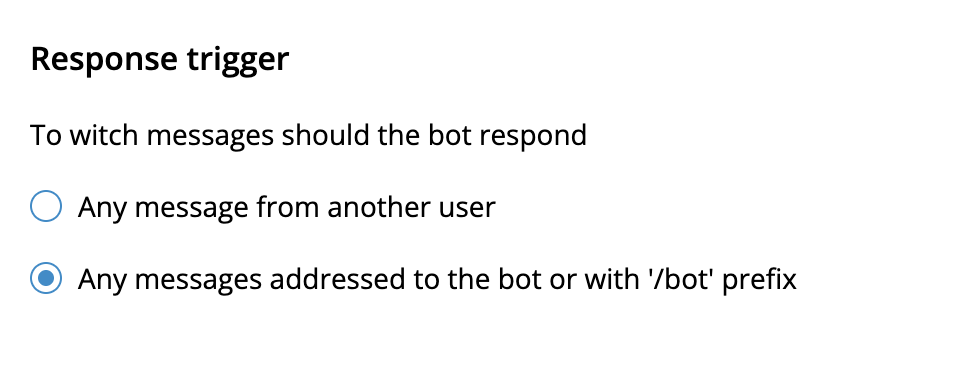
- Smart Response Triggers: Control when your bot responds – either to all messages or only when directly addressed
Intelligent Response Management
Your AI bot offers two response modes to fit different use cases:
- Respond to All Messages: Perfect for dedicated support channels where the bot should engage with every inquiry
- Respond Only When Addressed: Ideal for active group chats where you want the bot to participate only when specifically mentioned by name, in reply threads, or when users include the “/bot” prefix
Business-Specific Context and Knowledge
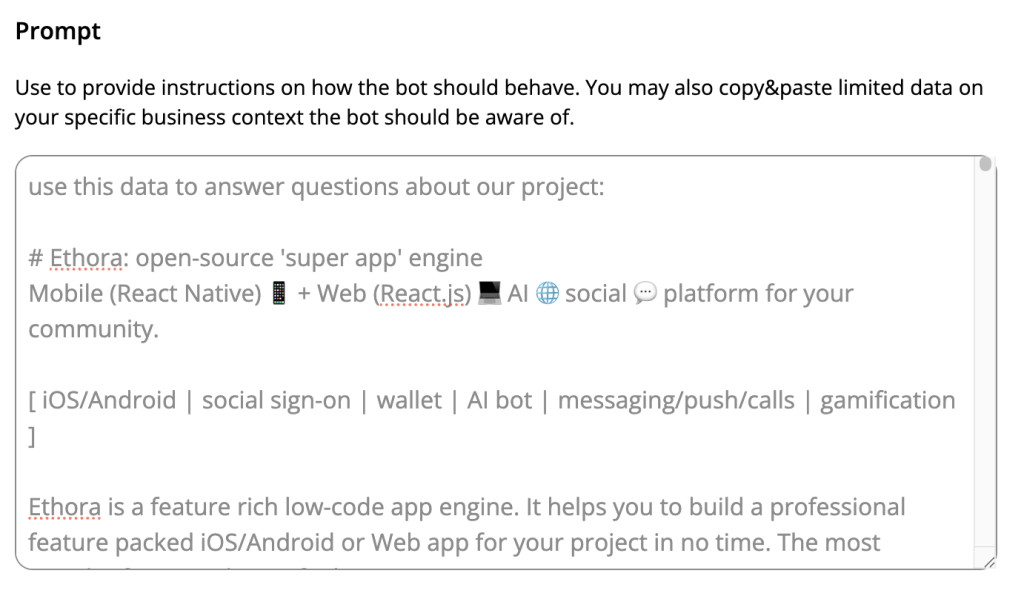
The most powerful feature is the Prompt (aka Context Window) – your secret weapon for creating truly useful AI assistants. Here’s where you can:
- Add your company’s specific product information
- Include documentation and FAQs
- Provide up-to-date business details that general AI models wouldn’t know
- Create custom instructions for how your bot should behave
For example, our tech support bot can now answer questions like “How do I create a new app with Ethora?” with accurate, specific guidance because we’ve provided it with our platform’s context and procedures. All we had to do is copy & paste the contents of our Readme.md file from our github repo!
Why This Changes Everything
Before: Complex Setup Required
Previously, deploying an AI chatbot required:
- Coding skills in Python or Node.js
- Server infrastructure setup on platforms like DigitalOcean or AWS
- Managing OpenAI API keys
- Custom development and maintenance
While we provided open-source bot templates in our GitHub repository for developers (https://github.com/dappros/ethora-bots), most users found the technical barrier too high.
After: True No-Code AI Deployment
Now, adding an intelligent chatbot to your Ethora application is as simple as:
- Navigate to the “AI Bot” tab in your admin panel
- Select your target chatroom
- Configure basic settings
- Add your business context and knowledge
- Save and deploy
That’s it. No coding, no server setup, no API key management – we handle all the technical complexity behind the scenes.
Real-World Impact
The difference between a generic AI response and a contextually aware one is remarkable. Without business-specific context, an AI bot might give generic answers that don’t help your users. With Ethora’s AI Bot feature, your chatbot becomes a knowledgeable assistant that understands your products, services, and procedures.
We’ve seen immediate improvements in our own support channels, with the bot providing accurate URLs, specific feature explanations, and step-by-step guidance that would be impossible with a standard AI implementation.
Advanced Capabilities Available
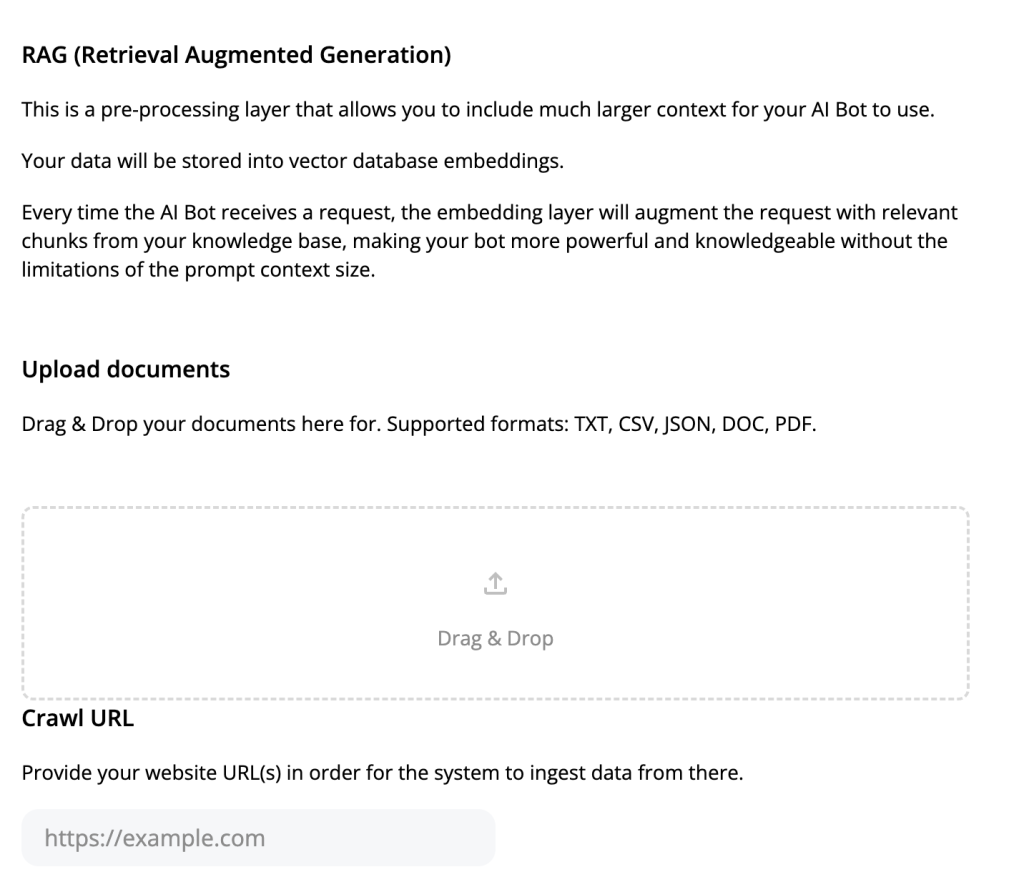
For users who need more sophisticated functionality, we also offer advanced options including:
- Retrieval Augmented Generation (RAG)
- Document ingestion
- URL crawling and indexing
- Vector embeddings
However, for most use cases, the basic functionality provides everything needed to create an effective AI assistant.
Getting Started
Ready to add an AI bot to your Ethora application? Here’s how:
- Log into your Ethora admin panel
- Click on the new “AI Bot” tab
- Select your desired chatroom
- Configure your bot’s name, greeting, and response settings
- Add your business context in the prompt window – this could include:
- Product documentation
- Service descriptions
- Company policies
- Frequently asked questions
- Any specific knowledge your bot should have
- Save your settings
Your AI bot will be automatically deployed and ready to assist your users immediately. Any updates you make to the context within the “Prompt” window are reflected in real-time, so you can continuously improve your bot’s knowledge base.
The Future of Customer Engagement
This launch represents our commitment to democratizing AI technology. Whether you’re running a small business website, managing a community platform, or integrating chat functionality into enterprise applications, you can now provide intelligent, 24/7 customer support without technical barriers.
The AI Bot feature works seamlessly with all Ethora deployment options – web apps, mobile apps, chat widgets, NPM packages, iFrames, and WordPress plugins.
Try It Today
The AI Bot feature is live now for all Ethora users. Log into your admin panel and explore how intelligent chatbots can transform your user engagement and support capabilities.
Ready to get started? Visit your Ethora admin panel and look for the new “AI Bot” tab.
Have questions about the new AI Bot feature? Our support team (now enhanced with our own AI bot!) is ready to help. Join our community or contact us through your admin panel.
Video
For those of you who prefer a video format, here I (Taras Filatov, Ethora founder & CEO), explain our new “AI Bot” tab and how it works:
I encourage you go ahead and try the “AI Bot” feature straight away! Let me know what you think and if there is anything you’d like improved UX or functionality wise!
Full transcript
Introduction
It is 2nd of July, 2025, and I’m going to demonstrate
the latest new feature in the Ethora platform.
So once you’re in your admin panel,
you can go and click on your app.
You will see a new tab here on the left side,
which was not there before.
The tab is called “AI Bot“.
This tab allows you to deploy an AI or LLM powered chatbot into your chatroom within your application.
So you will see here that you can start and stop this AI bot.
And this feature is rolled out for all apps.
So all apps, all users, all accounts at Ethora.com have this feature now.
you have to choose which chatroom your bot will be deployed at.
So in my app, there are like three chatrooms. I can choose one of them to deploy the chatbot at.
Display name for your AI chat bot
There is a display name for the bot. First name, last name, in my case it’s “AI Bot”.
Bot’s greeting message
The greeting message, so you can choose whenever the bot joins the room, either to greet all the other users, to announce its presence, or just like stay silent.
Response trigger – which messages AI bot will be responding to
And another important setting is the response trigger.
So to which messages, should the bot respond?
And you have two options, two choices here.
Either respond to any message from other users,
which could be depending on your use case implementation
could be the right choice,
or if it’s a group chat with active communication,
you might not want the AI bot to be responding to anything.
Another option is to only to messages addressed
to the bot by its name or replies, threads,
or when the user has “/bot” prefix in their message.
Prompt or context window input – put your business specific data here
And then this is the prompt.
So this is the most important setting probably here.
It’s kind of prompt or context that we
send to LLM for the bot to be aware of your local context
so that it should use in its responses.
So in our case, for example,
we want the bots to be present in the tech support chat room,
you can see here,
and to be able to respond to some simple questions,
for example, like this one,
how do I create a new app with Ethora?
And then it responds.
So this response
would not have been possible
if we just deploy the simple bot based on like OpenAI API
without our local context, without our local prompt,
supplying it, augmenting it with additional information.
This feature, I mean, this prompt or context window that,
and you can see it allows to post a lot of information
actually here, is used to augment the prompt message
to the LLM.
So if we had like a standard OpenAI or other LLM
responding to the messages, it would not have the knowledge
about our specific product or the URLs that you should use
Similarly, for your specific business, you can provide a list of products and services
or again, some local information which a large language model would not be aware of due to
it’s not have access to your information, didn’t index it or the knowledge cutoff time
of the LLM is too early and you want to provide
the fresh up-to-date information.
So in our case, this has helped a lot
and similarly, you can just augment this
and provide your own specific information
in the prompt section.
And this is how it works.
So when the user asks a certain question,
the bot will respond with specific information
information based on the context that you provided, which is really helpful.
Summary – a no code AI bot deployment is now possible with Ethora platform
So to summarize why is this important and why this is a big deal
for everybody, for our users, for customers, for the industry who might be
building, deploying their own apps,
or integrating chat messaging AI bots into legacy applications.
With the Ethora platform, you can do that easily.
And now you don’t need to do any coding or additional server
infrastructure setup to deploy your AI bot.
Previously, we had obviously this feature
where you could easily build your app.
So you can go into our like create your new app,
change your logo appearance, publish your web app
or mobile app or embed your messaging
as a chat widget using our npm package or iframe.
so there are multiple options there.
But to have an AI chatbot,
you couldn’t do that with our admin panel
just like in no-code mode without having to do any
of coding or any of the infrastructure.
We did provide this option,
so we have this repository, etora-bots,
and there are a bunch of bots available
in our GitHub repository, and
they are open
source.
So you can have the boards written in Python.
You have boards in Node.js.
One of them is OpenAI bot, so it’s simple
for those who know how to work with Node.js
or with Python and who are hands-on
with setting up a simple server instance
on DigitalOcean or AWS, that would be fairly easy (but still takes time to do)
for those kind of, for developers to deploy their own bot
and to customize the behavior of the bot
to augment the prompt and do those kind of things.
However, for most of the users,
when they create an app and they have like a ready web app
already, mobile app or they embed a chat widget,
NPM package, iFrame, WordPress plugin,
so they have this chat room,
either like a group chat room or one-on-one,
and they want to add an AI bot in there.
There was no easy solution.
Now there is, so they just, all they need to do,
all you need to do to make that happen,
just go to your “AI bot” tab
in your settings,
and just modify the settings if you need,
provide your local knowledge context, your prompt,
and it works, so it will be automatically deployed
into your chatroom.
No coding, no server setup, no open AI, API keys,
nothing is required, it’s all handled by it or a platform.
Advanced options (RAG, document ingestion, URL crawling and vector embeddings)
If you want potentially to go deeper and further, there are other options available for retrieval augmented generation, RAG, be able to add documents, crawl URL for like your website, advanced options, but for most of the users, most of the customers, most of the projects, this basic functionality actually will be enough.
So you simply choose chat room, you choose the display name for your chatbot, modify these basic settings depending on your desired experience, and most importantly, provide prompt or context which you can use to either instruct the bot how it should behave or to simply like we did here, provide it with your local business context with specific knowledge it should be aware of.
You can copy paste your documentation, you can create a summary about your products and services, just copy paste it into this window
And once you save this, it will be automatically updated and you will see like in this messages, for example, it used our old website and then I updated it in the context window and it’s responding now with a new website.
Very simple, very easy to use. Go ahead and try it! Thank you.
Keep Reading
- Why your website’s AI chatbot is probably useless (and how to fix it)
- Ethora AI Widget — lightweight, scalable, powered by ChatGPT
- Why RAG is critical for customer support AI
Build your own AI bot in minutes — explore the no-code AI agent builder, or start building for free.
More from Ethora: self-hosted LLM AI agent, Ethora chat SDK.

Share with your community


More Articles
Development
Oct 5, 2026
Cross-Platform App Development Frameworks in 2026: 10 Options Compared, Real Trade-offs, and Chat + AI SDK Fit
In 2026, evaluating cross-platform frameworks is a complex matter. There are many practical questions: Which ones have solid chat and AI SDK support today? Which ones won’t force a painful migration when the next major OS version drops? And what are the real engineering trade-offs once you move past the marketing claims? We’ll look at […]

Healthcare
Oct 1, 2026
HIPAA-Compliant Video API in 2026: What Actually Makes One, Vendor Comparison, and Twilio Video Migration
Consultations, psychiatry meetings, medication management, triage, and other medical encounters often do not require physical presence. Adding video to your healthcare app or platform can be a great idea, as it allows you to hold sessions online without losing the human touch. Using a messaging API to incorporate video into your application makes the whole […]

Try Out Ethora in Action
Experience Ethora's messaging with a dedicated demo from our CEO or start building your App right now!