Pre-requisites and assumptions
You have obtained an enterprise/commercial license for Ethora self-hosted chat server or Ethora self-hosted AI agent.
You have deployed a dedicated instance (using AWS, other IaaS or on premise) according to Recommended Configuration (see below) where you have a root SSH access. See this guide on setting up your instance with AWS, but note Ethora can work pretty much on any Ubuntu Linux machine.
You have unpacked or GIT checked out the Ethora distribution into a source directory in your home folder. For example:
Tarball distribution:
(replace ethora-deploy-2026-01-16-1055.tar.gz with your filename)
sha256sum -c ethora-deploy-2026-01-16-1055.tar.gz.sha256
tar -xzf ethora-deploy-2026-01-16-1055.tar.gz
mv ethora-deploy-2026-01-16-1055 ethora-monoserver
Git distribution
configure your remote server to work with git
generate key (assuming no password):
ssh-keygen -t ed25519 -C "ubuntu@chat.<yourdomain>.com" -f ~/.ssh/id_ed25519 -N ""print key:
cat ~/.ssh/id_ed25519.pub1) Copy the printed key.
2) In GitHub: Settings → SSH and GPG keys → New SSH key → paste it.
now you can git clone:
git clone git@github.com:dappros/ethora-install-shared.gitRecommended configuration
OS: Ubuntu Linux 24.04, amd64. Note: arm64 is supported, but amd64 is recommended.
CPU: Dev/QA: t3.medium (2 vCPU / 4 GB RAM) or equivalent; Production: t3.large (2 vCPU / 8 GB RAM) or equivalent.
Storage (SSD): 100Gb storage for Dev/QA and 350-500Gb or more storage for Production
(see this guide for AWS: https://forum.ethora.com/topic/69-choosing-aws-instance-for-your-dedicated-ethora-installation/)
Security groups / firewall:
Open port 22 for your SSH access
Open ports 80 and 443 for the world for your access to the web app (admin panel)
Step-by-step guide
Please follow our Localhost setup guide: https://forum.ethora.com/topic/74-deploying-ethora-on-localhost-step-by-step-guide/ with the following differences:
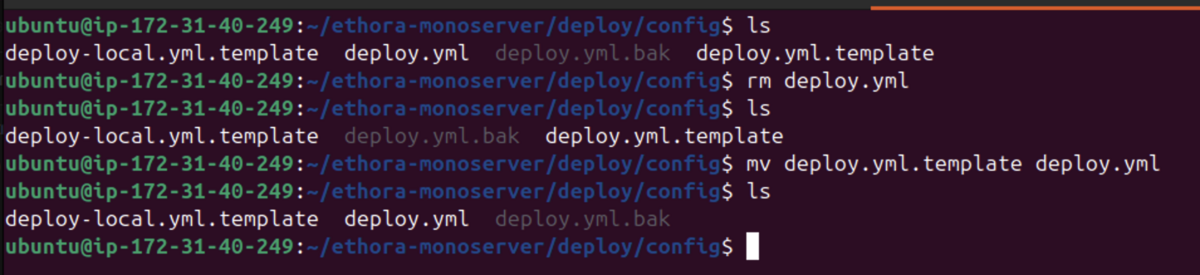
Use the correct deploy.yml.template. In your source directory under /deploy/config, copy deploy.yml.template to deploy.yml e.g.:
cd /home/ubuntu/ethora-install-shared/
(make sure to replace /home/ubuntu/ethora-monoserver with your source directory where your install tarball is)
Using the correct deploy config template
Go to your deploy config directory (e.g. cd /home/ubuntu/ethora-install-shared/deploy/config)
You should find two templates there, one deploy-local.yml.template tailored for a localhost setup, another deploy.yml.template for a remote host setup. You need the second one. Copy deploy.yml.template to deploy.yml:
cp deploy.yml.template deploy.yml
Example:
Edit your deploy.yml (e.g. nano deploy.yml) and address the following sections:
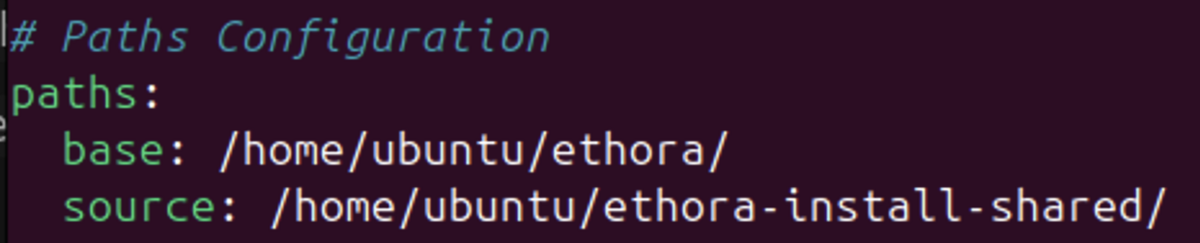
Path Configuration
Set paths:
base: to where your target directory with Ethora installation is going to be unless you prefer the installer to use a default relative path. Typically this is /home/ubuntu/ethora:
source: (optional) the path where your install files from tarball or GIT checkout are located
Note: it is possible to install the system into the same directory where installation files are, but we recommend to specify a separate base (target) dir to keep the installation package cleanly separate from the live system.
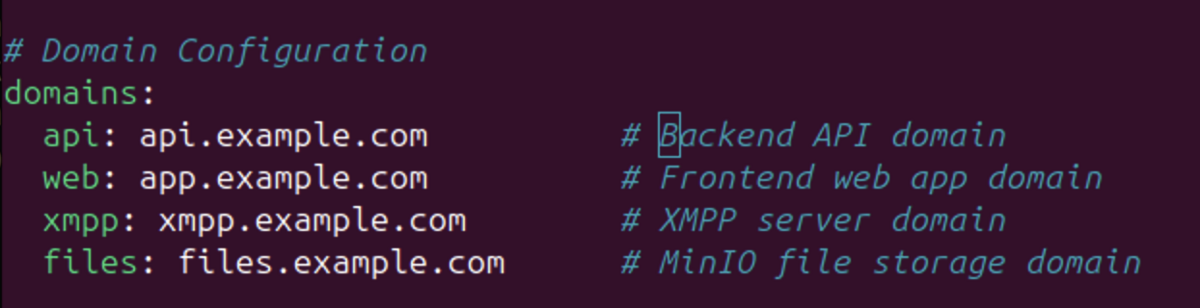
Domain configuration
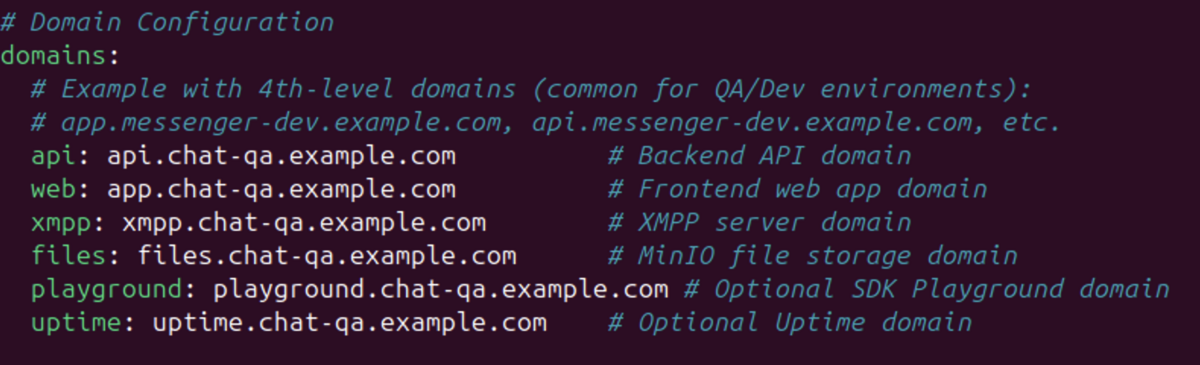
Make sure to specify correct domain and subdomains your Ethora server is going to use for all services under "Domain Configuration" section:
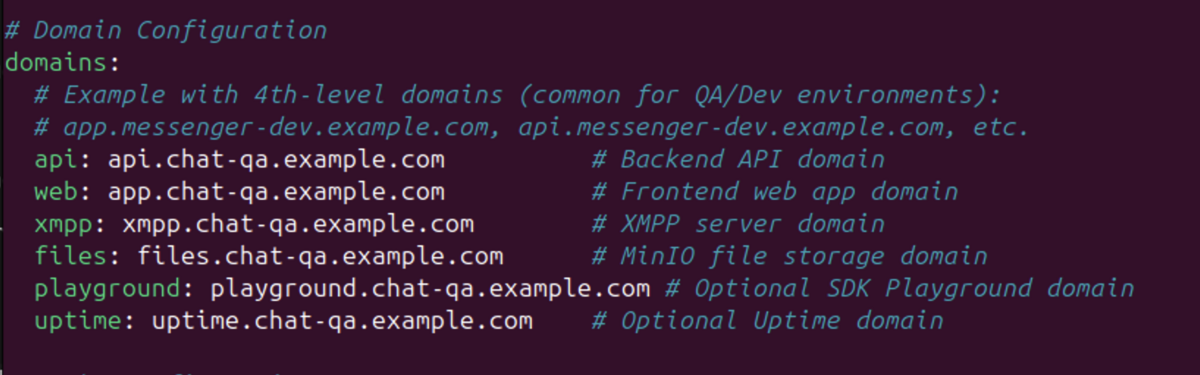
Note: we recommend using 3rd level domains for your instances with Ethora.
E.g. chat.example.com or messenger.example.com allows you to deploy your Ethora system under your existing corporate domain name.
Additionally, you may deploy dedicated Dev and/or QA servers if needed at endpoints such as chat-qa.example.com, chat-dev.example.com etc.
This allows your technical team to easily switch between, for example:
api.chat-dev.example.com for Development
api.chat-qa.example.com for QA / Staging
api.chat.example.com for Production
DNS configuration
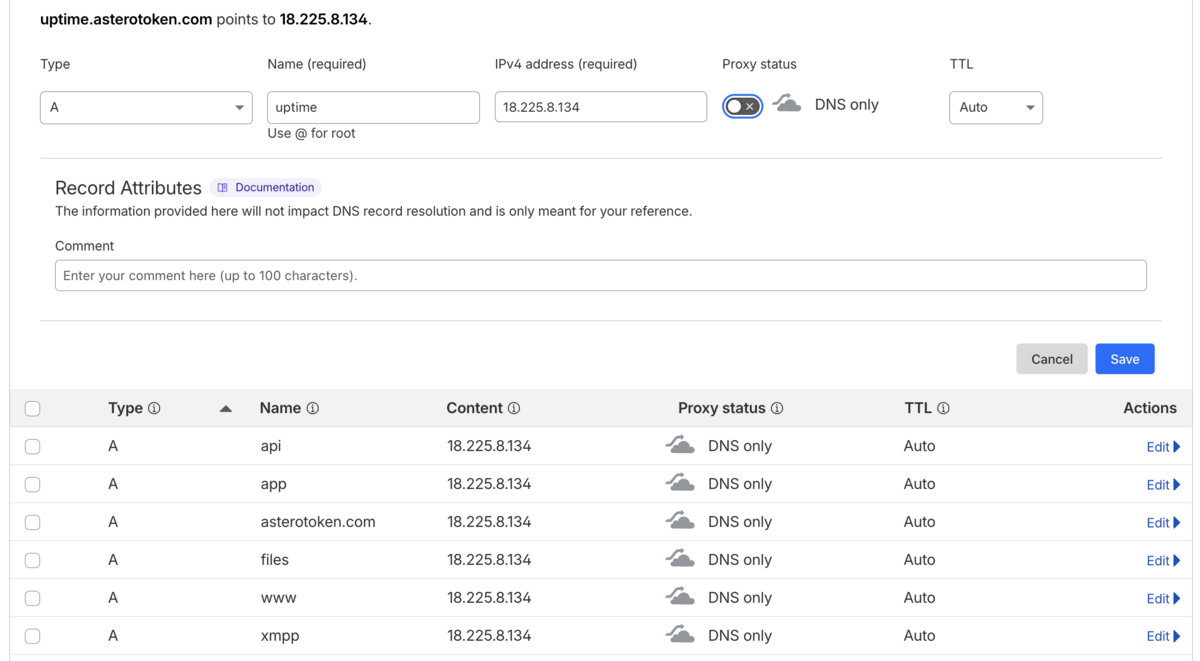
In your domain DNS settings (e.g. your domain provider, Cloudflare or AWS depending on how your DNS is managed), you'll need to add A records for these subdomains to work.
For each sub-domain, create an A-record pointing to your IP.
Switch off "Proxied" mode if you use Cloudflare - make sure it's set to "DNS only"
Example (Cloudflare UI) - replace IP and domain name with your own settings:
Alternatively:

SSL configuration
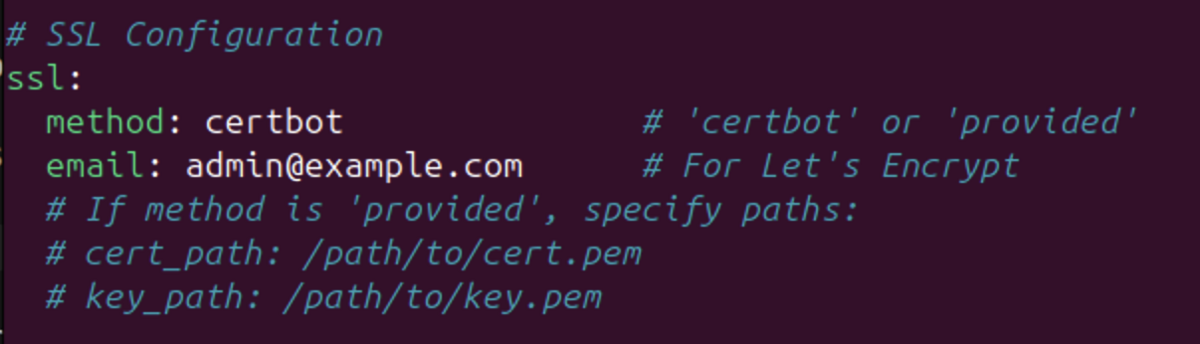
Unless you prefer using your own SSL certificates, you can keep certbot there. This will generate free SSL certificates for you.
Specify your e-mail address for certbot.
Note (ignore if unsure):
most installs won't need this, but if you plan to support hosted web apps for multiple tenants, you need to add a separate wildcard SSL certificate and path to it in "ssl:" section. In such case, add the following parameters as well.
Example:
ssl:
[ ... ]
hosted_apps_cert_path: /etc/letsencrypt/live/chat-qa.example.com/fullchain.pem
hosted_apps_key_path: /etc/letsencrypt/live/chat-qa.example.com/privkey.pem
(Follow our guidance here https://forum.ethora.com/topic/84-hosted-tenant-apps-support-added-for-dedicated-enterprise-deployment-option/#comment-110 on how to create the wildcard certificate for the hosted apps)
Admin configuration
For a publicly exposed server especially in Production make sure to change the default super admin credentials under "Admin Configuration" section:

Base App configuration
display.name: - this is the display name title and configuration of Ehora frontend application typically available at app.<yourdomain>.
You may use this application for admin purposes such as manage your Users, view statistics etc.
In most cases you will not expose this to your end users (unless you decide to use standard Ethora no-code app) but still it is a good idea to change display_name to your company or project name, for example. You might add "Chat" or "AI" depending on what you use Ethora for. E.g. "ACME Chat" or "ACME AI" could work for display_name param.

Follow the rest of the install guide
Now you can launch the install.sh script to deploy the system to your server.
You may follow the rest of the guide from our Localhost setup version: https://forum.ethora.com/topic/74-deploying-ethora-on-localhost-step-by-step-guide/