Here is a step by step instruction:
Login to your AWS console.
Go to EC2 Instances and press "Launch instances" button in the top right
Enter Name for your server (for example, "Chat Server Dev" or "Ethora Dev")
In Application and OS Images, choose Ubuntu and then you can pick Ubuntu Server 24.04 LTS (HVM0, SSD Volume Type (x86). This will typically be a first option in the drop-down list. Note: Arm architecture is also supported by Ethora, but let's assume you have picked x86 for the purpose of this guide.
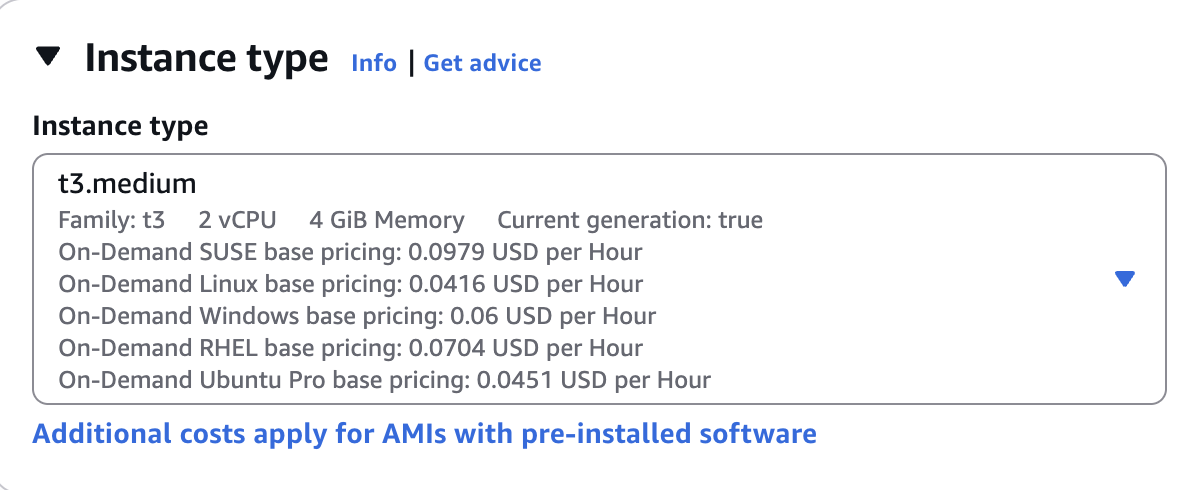
For instance type, we recommend you choose t3.medium (Dev/QA), or for Production servers with low to moderate traffic expected. For Production servers with higher traffic expected, consider m6i.large, m7i.large or, even better: m7i-flex.large (Prod)
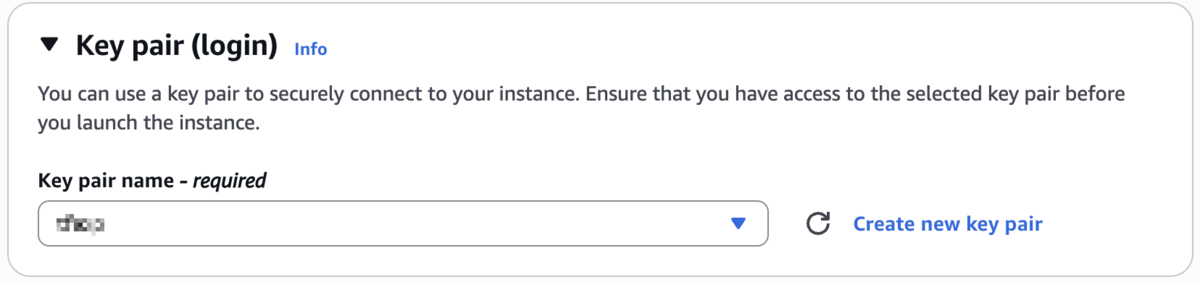
Add a key pair so that you can access your instance via SSH
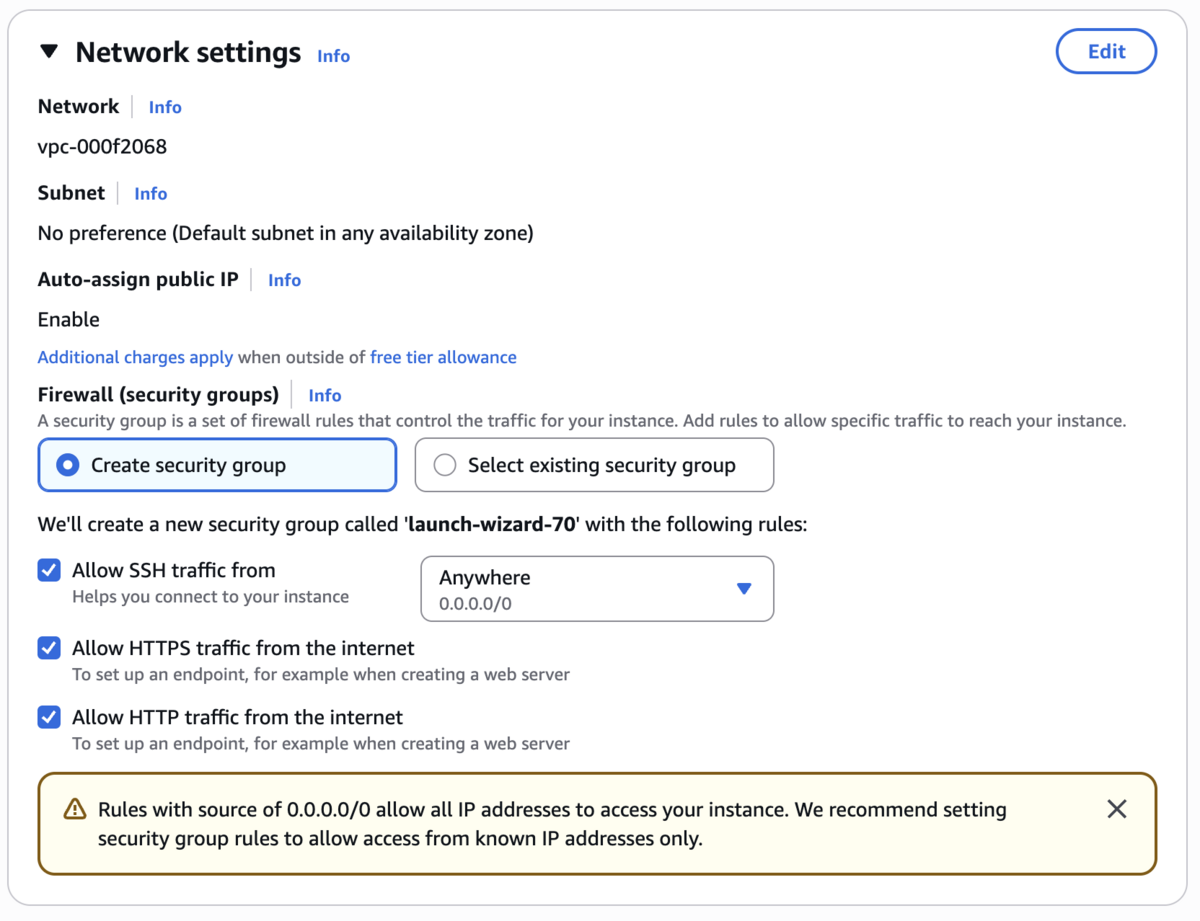
For Network settings, this is where you set up your security settings.
SSH traffic: either allow from anywhere or restrict to your own IP and IP addresses of your team who will be accessing the server (more secure).
Enable "Allow HTTPS traffic from the internet"
Enable "Allow HTTP traffic form the internet" (this is needed for certbot and HTTP->HTTPS redirects, you may disable it after installation if you prefer)
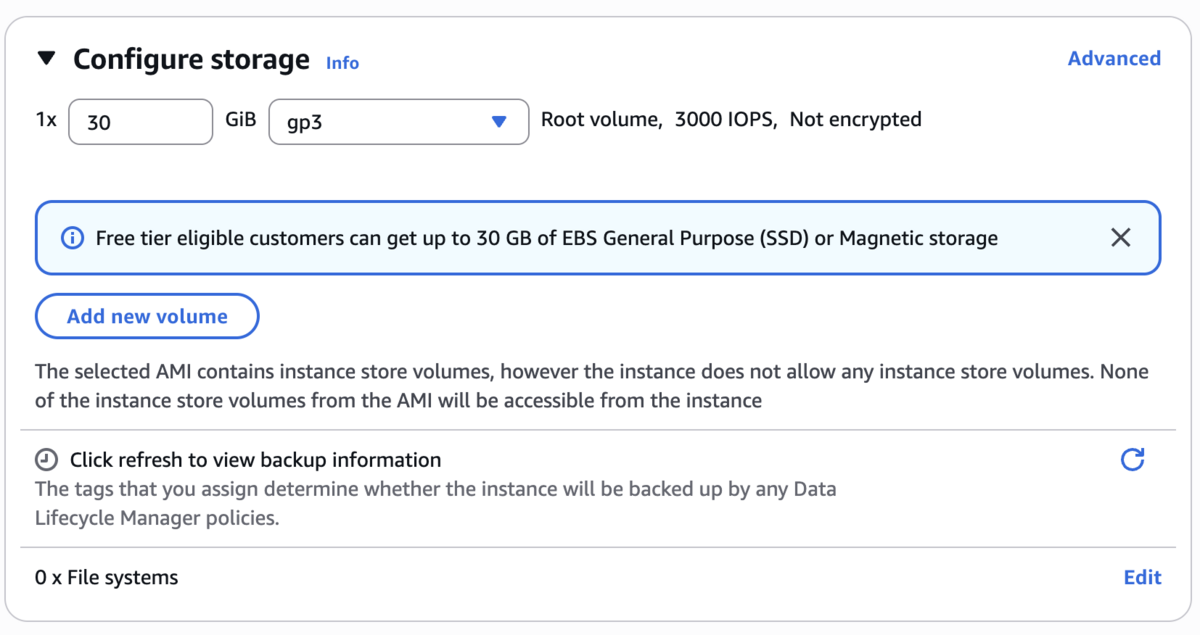
Configure storage - for test purposes you can choose a 30 Gb instance (free tier eligible) or up to 100 Gb. For production purposes, we would recommend going for a larger volume such as 200 Gb - 350 Gb so you don't run out of space for backups, logs etc.
For the rest of settings, there are no hard requirements - choose whatever you prefer.
Launch the instance

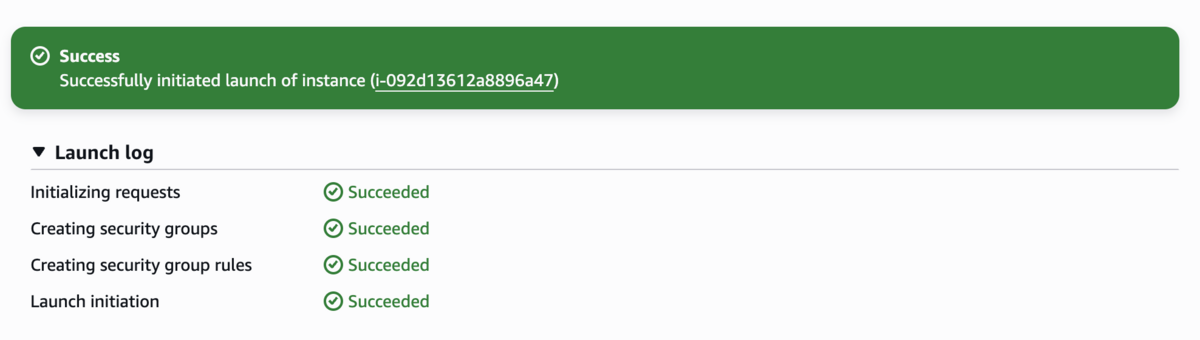
You should see an update like this:
Your instance will now be visible in your "Instances" screen:
