Ethora Community

Community › Developers (platform specific questions) › Backend, API, Admin Dashboard

Migrating or restoring your Ethora server databases state

Archived from the Ethora community forum. First posted on 6 April 2026; product details may have changed since. For current setup see Get Ethora and GitHub.

For migrating or restoring your Ethora instance, the options generally are:

  1. Restore the whole instance from backup

  2. Install a new system on a clean instance using Ethora Deploy / Install system, restore MongoDB for Apps and Users state, but start with a clean MySQL / Postgres DB for chat state.

  3. Same as 2, but restore chat DB as well so that chat rooms and chat history is also restored.

In this guide we will cover options #2 and #3 which require manual operations.

Note: all bash commands are examples, make sure to replace them with your specific file names, paths and domain names.

In our example, we are deploying copies of Prod DB to a QA server.

Export DB files from the source server

Export Mongo DB (Core apps state)

  1. Find Mongo container

docker ps --format '{{.Names}}' | rg mongo
  1. Export dump

docker exec <mongo_container> mongodump --archive --gzip --db ethora_prod > /tmp/ethora-prod-mongo.archive.gz

Export MySQL DB (Chat server state)

You'll need MySQL password for exporting. In case you don't know the password:

  1. Find source MySQL password:

docker inspect "xmpp_ethoradev_com-mysql-1" \
  --format '{{range .Config.Env}}{{println .}}{{end}}' \
  | rg 'MYSQL_ROOT_PASSWORD|MYSQL_PASSWORD|MYSQL_DATABASE|MYSQL_USER'
  1. List databases:

docker exec -it "xmpp_ethoradev_com-mysql-1" \
  mysql -uroot -p'PASTE_PASSWORD_HERE' -e "SHOW DATABASES;"

commonly this would be ejabberd_db.

  1. Export the DB:

docker exec "xmpp_ethoradev_com-mysql-1" \
  mysqldump -uroot -p'PASTE_PASSWORD_HERE' \
  --single-transaction --quick --routines --triggers \
  ejabberd_db > /tmp/ejabberd_db.sql
  1. Optional gzip before copying

gzip -f /tmp/ejabberd_db.sql
ls -lh /tmp/ejabberd_db.sql.gz

Restore DB backups to the target server

Copy DB files to target server

gzip -k "ejabberd_db.sql"
scp "dev_20260403T135921Z.archive" \
    "ejabberd_db.sql.gz" \
    ubuntu@<QA_SERVER_IP>:/tmp/

Identify expected DB names on target server

sudo rg '^MONGO_DB=' /home/ubuntu/ethora/ethora-backend/services/api/.env
sudo bash -lc 'source /home/ubuntu/ethora/deploy/.deploy.env && echo "$MYSQL_ROOT_PASSWORD"'
docker ps --format '{{.Names}}' | rg 'mongo|mysql|xmpp'

Stop writers before restore

pm2 stop backend backend-jobs push push-worker sdk-playground || true
sudo bash -lc 'source /home/ubuntu/ethora/deploy/.deploy.env && docker compose -f /home/ubuntu/ethora/deploy/docker-compose.enterprise.yml stop xmpp'

Backup current server DBs first (optional, skip if installing to a fresh instance)

docker exec deploy-mongo-1 mongodump --archive > /tmp/qa-before-restore-mongo.archive
sudo bash -lc 'source /home/ubuntu/ethora/deploy/.deploy.env && docker exec deploy-mysql-1 mysqldump -uroot -p"$MYSQL_ROOT_PASSWORD" --single-transaction --quick ejabberd_db > /tmp/qa-before-restore-ejabberd.sql'

Deploy MongoDB (and optionally remap)

Remap example - source DB archive contains 'dev' but target expects 'ethora_prod', so we carry out a remap:

docker exec -i deploy-mongo-1 mongorestore \
  --archive \
  --drop \
  --nsFrom='dev.*' \
  --nsTo='ethora_prod.*' \
  < /tmp/dev_20260403T135921Z.archive

Alternatively, if remap is not needed:

Deploying without remap:

docker exec -i deploy-mongo-1 mongorestore \
  --archive \
  --drop \
  < /tmp/dev_20260403T135921Z.archive

Restart services and test

This is assuming MySQL (chat server state) doesn't need restoring or you want to test the system before that.

sudo bash -lc 'source /home/ubuntu/ethora/deploy/.deploy.env && docker compose -f /home/ubuntu/ethora/deploy/docker-compose.enterprise.yml start xmpp'
pm2 restart backend backend-jobs push push-worker sdk-playground

Restoring MySQL (Chat database)

To restore plain SQL:

sudo bash -lc 'source /home/ubuntu/ethora/deploy/.deploy.env && \
docker exec -i deploy-mysql-1 mysql -uroot -p"$MYSQL_ROOT_PASSWORD" -e "DROP DATABASE IF EXISTS ejabberd_db; CREATE DATABASE ejabberd_db;"'

sudo bash -lc 'source /home/ubuntu/ethora/deploy/.deploy.env && \
docker exec -i deploy-mysql-1 mysql -uroot -p"$MYSQL_ROOT_PASSWORD" ejabberd_db' < /tmp/ejabberd_db.sql

To restore gzipped SQL:

sudo bash -lc 'source /home/ubuntu/ethora/deploy/.deploy.env && \
docker exec -i deploy-mysql-1 mysql -uroot -p"$MYSQL_ROOT_PASSWORD" -e "DROP DATABASE IF EXISTS ejabberd_db; CREATE DATABASE ejabberd_db;"'

gunzip -c /tmp/ejabberd_db.sql.gz | \
sudo bash -lc 'source /home/ubuntu/ethora/deploy/.deploy.env && \
docker exec -i deploy-mysql-1 mysql -uroot -p"$MYSQL_ROOT_PASSWORD" ejabberd_db'

Then restart XMPP:

sudo bash -lc 'source /home/ubuntu/ethora/deploy/.deploy.env && docker compose -f /home/ubuntu/ethora/deploy/docker-compose.enterprise.yml restart xmpp'

Minio migration

To migrate Minio file storage, the cleanest option is to use mc:

mc alias set legacy http://<legacy-host>:9000 <access_key> <secret_key>
mc alias set qa http://<qa-host>:9000 <access_key> <secret_key>
mc mirror --overwrite legacy qa

If legacy MinIO is only local inside Docker, you can run mc on the legacy server against localhost:9000 .

Migrating using helper script

When migrating between instances with different domain names (e.g. from chat-example.com to chat.example.com), it is not enough to copy the databases as is, since they will contain URL / domain references. For this, migrating using our helper scripts is recommended.

Overview

The flow has two phases:

  1. On an operator workstation, generate a migration pack from the source snapshots.

  2. On the QA server, install/reset the stack, restore the databases, apply the generated rewrite scripts, and run validation checks.

The migration helper lives in the source repository checkout, while the deployment and restore are run from the install checkout on the server.

Assumptions

Example target domains:

  • Web app: app.chat.example.com

  • API: api.chat.example.com

  • XMPP: xmpp.chat.example.com

  • Files: files.chat.example.com

  • Hosted apps root: chat.example.com

Expected repositories:

  • Source/deploy-helper repo: ethora-monoserver

  • Server install repo: ethora-install-shared

Expected inputs:

  • MongoDB archive dump file

  • Ejabberd MySQL SQL dump file

Placeholders

Replace these values before running:

  • <QA_SSH_HOST>: SSH host for the QA server

  • <SSH_KEY>: path to the SSH private key

  • <MONO_REPO>: local path to ethora-monoserver

  • <MONGO_ARCHIVE>: local path to the Mongo archive dump

  • <EJABBERD_SQL>: local path to the Ejabberd SQL dump

Example placeholder values:

QA_SSH_HOST="ubuntu@qa-server.example.com"
SSH_KEY="$HOME/.ssh/id_rsa"
MONO_REPO="$HOME/ethora-monoserver"
MONGO_ARCHIVE="/path/to/dev.archive"
EJABBERD_SQL="/path/to/ejabberd_db.sql"

Phase 1: Generate Migration Pack Locally

Run this on the workstation where the source snapshots are available.

set -euo pipefail

QA_SSH_HOST="ubuntu@qa-server.example.com"
SSH_KEY="$HOME/.ssh/id_rsa"

MONO_REPO="$HOME/ethora-monoserver"
MONGO_ARCHIVE="/path/to/dev.archive"
EJABBERD_SQL="/path/to/ejabberd_db.sql"
AI_POSTGRES_DUMP="/path/to/ai_service_embeddings.dump"  # optional

cd "$MONO_REPO"
git checkout main
git pull --ff-only origin main
git submodule update --init --recursive

cd deploy
PACK_DIR="$PWD/generated/stateful-migration/chat-example-$(date -u +%Y%m%dT%H%M%SZ)"

PREPARE_ARGS=(
  --mongo-archive "$MONGO_ARCHIVE"
  --ejabberd-sql "$EJABBERD_SQL"
  --output-dir "$PACK_DIR"
  --api-domain api.chat.example.com
  --web-domain app.chat.example.com
  --xmpp-domain xmpp.chat.example.com
  --files-domain files.chat.example.com
  --hosted-apps-root chat.example.com
  --base-app-domain-name app
  --rewrite-ejabberd-dump
)

if [ -f "$AI_POSTGRES_DUMP" ]; then
  PREPARE_ARGS+=(--ai-postgres-dump "$AI_POSTGRES_DUMP")
fi

./scripts/prepare-stateful-migration.sh "${PREPARE_ARGS[@]}"

tar -C "$(dirname "$PACK_DIR")" -czf "${PACK_DIR}.tar.gz" "$(basename "$PACK_DIR")"

ssh -i "$SSH_KEY" "$QA_SSH_HOST" 'mkdir -p ~/stateful-migration'

TRANSFER_FILES=(
  "$MONGO_ARCHIVE"
  "$EJABBERD_SQL"
  "${PACK_DIR}.tar.gz"
)

if [ -f "$AI_POSTGRES_DUMP" ]; then
  TRANSFER_FILES+=("$AI_POSTGRES_DUMP")
fi

scp -i "$SSH_KEY" "${TRANSFER_FILES[@]}" "$QA_SSH_HOST:~/stateful-migration/"

What the Migration Pack Contains

The generated pack includes:

  • migration-plan.md

  • migration-map.env

  • mongo-post-restore.js

  • ejabberd-post-import.sql

  • ejabberd-cleanup.sql

  • optionally ejabberd_db.rewritten.sql when --rewrite-ejabberd-dump is used

  • if you pass --ai-postgres-dump, migration-plan.md now includes the AI Postgres restore guidance/path

  • the actual AI pgvector dump is still transferred alongside the pack tarball, not embedded inside it

These files are generated from the target domain configuration and are intended to rewrite known environment-specific references after restore.

Phase 2: Restore on the QA Server

Run this on the QA server.

set -euo pipefail

cd ~/ethora-install-shared
git checkout main
git pull --ff-only origin main
git submodule update --init --recursive

cd ~/stateful-migration
MONGO_FILE="$(ls -1 *.archive | head -n 1)"
MYSQL_FILE="$(ls -1 *.sql | rg 'ejabberd' | head -n 1)"
AI_PG_DUMP_FILE="$(ls -1 *.dump 2>/dev/null | head -n 1 || true)"
PACK_TGZ="$(ls -1t chat-example-*.tar.gz | head -n 1)"
tar -xzf "$PACK_TGZ"
PACK_DIR="$HOME/stateful-migration/${PACK_TGZ%.tar.gz}"

RESTORE_SQL="$HOME/stateful-migration/$MYSQL_FILE"
if [ -f "$PACK_DIR/ejabberd_db.rewritten.sql" ]; then
  RESTORE_SQL="$PACK_DIR/ejabberd_db.rewritten.sql"
fi

cd ~/ethora-install-shared/deploy
sudo ./scripts/install.sh --reset

source .deploy.env

cat "$HOME/stateful-migration/$MONGO_FILE" | \
  docker-compose -f docker-compose.enterprise.yml exec -T mongo \
  mongorestore --archive --drop

docker-compose -f docker-compose.enterprise.yml exec -T mongo \
  mongosh --quiet "$MONGO_DB" < "$PACK_DIR/mongo-post-restore.js"

docker-compose -f docker-compose.enterprise.yml exec -T mysql \
  mysql -uroot -p"$MYSQL_ROOT_PASSWORD" ejabberd_db < "$RESTORE_SQL"

docker-compose -f docker-compose.enterprise.yml exec -T mysql \
  mysql -uroot -p"$MYSQL_ROOT_PASSWORD" ejabberd_db < "$PACK_DIR/ejabberd-post-import.sql"

if [ -n "$AI_PG_DUMP_FILE" ]; then
  [ -n "${AI_PG_URL:-}" ] || { echo "AI_PG_URL is not set in .deploy.env"; exit 1; }
  pg_restore -d "$AI_PG_URL" --clean --if-exists --no-owner --no-acl \
    "$HOME/stateful-migration/$AI_PG_DUMP_FILE"
fi

docker-compose -f docker-compose.enterprise.yml exec -T mysql \
  mysql -uroot -p"$MYSQL_ROOT_PASSWORD" ejabberd_db <<'SQL'
SET @needs_type := (
  SELECT COUNT(*)
  FROM information_schema.columns
  WHERE table_schema = 'ejabberd_db'
    AND table_name = 'users'
    AND column_name = 'type'
);
SET @sql := IF(
  @needs_type = 0,
  "ALTER TABLE users ADD COLUMN type VARCHAR(16) NOT NULL DEFAULT 'scram' AFTER password",
  "SELECT 1"
);
PREPARE stmt FROM @sql;
EXECUTE stmt;
DEALLOCATE PREPARE stmt;
SQL

./scripts/setup-ejabberd-config.sh
docker-compose -f docker-compose.enterprise.yml restart xmpp
sleep 10

./scripts/init-services.sh
./scripts/qa-check.sh
./scripts/health-check.sh

Recommended Safer Variant

To avoid hardcoding filenames in the restore commands, detect them dynamically:

cd ~/stateful-migration
MONGO_FILE="$(ls -1 *.archive | head -n 1)"
MYSQL_FILE="$(ls -1 *.sql | rg 'ejabberd' | head -n 1)"
PACK_TGZ="$(ls -1t chat-example-*.tar.gz | head -n 1)"
tar -xzf "$PACK_TGZ"
PACK_DIR="$HOME/stateful-migration/${PACK_TGZ%.tar.gz}"

Then use:

cat "$HOME/stateful-migration/$MONGO_FILE" | \
  docker-compose -f docker-compose.enterprise.yml exec -T mongo \
  mongorestore --archive --drop

docker-compose -f docker-compose.enterprise.yml exec -T mysql \
  mysql -uroot -p"$MYSQL_ROOT_PASSWORD" ejabberd_db < "$HOME/stateful-migration/$MYSQL_FILE"

Validation Checklist

After the restore completes:

  1. Run ./scripts/qa-check.sh

  2. Run ./scripts/health-check.sh

  3. Log into https://app.chat.example.com

  4. Verify the base app loads correctly

  5. Verify chat login and message sending work

  6. Verify uploaded assets resolve from files.chat.example.com

Optional Cleanup

The generated file ejabberd-cleanup.sql contains optional cleanup statements for stale Ejabberd data.

Review it before applying anything:

less "$PACK_DIR/ejabberd-cleanup.sql"

If approved, apply selected statements manually rather than running the whole file blindly.

Notes

  • install.sh --reset clears existing runtime data before restore.

  • mongo-post-restore.js applies Mongo-side URL and environment rewrites after mongorestore.

  • ejabberd-post-import.sql applies Ejabberd/MySQL-side rewrites after SQL import.

  • setup-ejabberd-config.sh must be re-run after restore so the active Ejabberd config matches the target environment.

  • The users.type column fix is included because older Ejabberd SQL dumps may not match the current schema expected by the deployed Ejabberd version.

Troubleshooting

If init-services.sh appears to stall on Ejabberd admin creation:

tail -n 50 ~/ethora-install-shared/deploy/.deploy-state/ejabberd-admin-init.log

If health checks fail:

cd ~/ethora-install-shared/deploy
./scripts/qa-check.sh
./scripts/health-check.sh
docker-compose -f docker-compose.enterprise.yml ps
docker-compose -f docker-compose.enterprise.yml logs --tail 200 xmpp

Advanced options

Migrating superadmin user

  • --retain-legacy-super-admin <email>

  • --promote-super-admin <email>

  • --backfill-default-room-memberships

Minio data migration

When moving a stateful environment from example.com to chat.example.com, MinIO object data should be migrated separately from MongoDB and MySQL snapshots.

Example domains:

  • source app: app.example.com

  • source files host: files.example.com

  • target app: app.chat.example.com

  • target files host: files.chat.example.com

Important notes:

  • mc mirror copies object data and preserves object keys.

  • It does not rewrite URLs stored in MongoDB or Ejabberd.

  • If migrated files exist but the application still requests the old files host, a database URL rewrite is still required.

1. Install mc on the target server

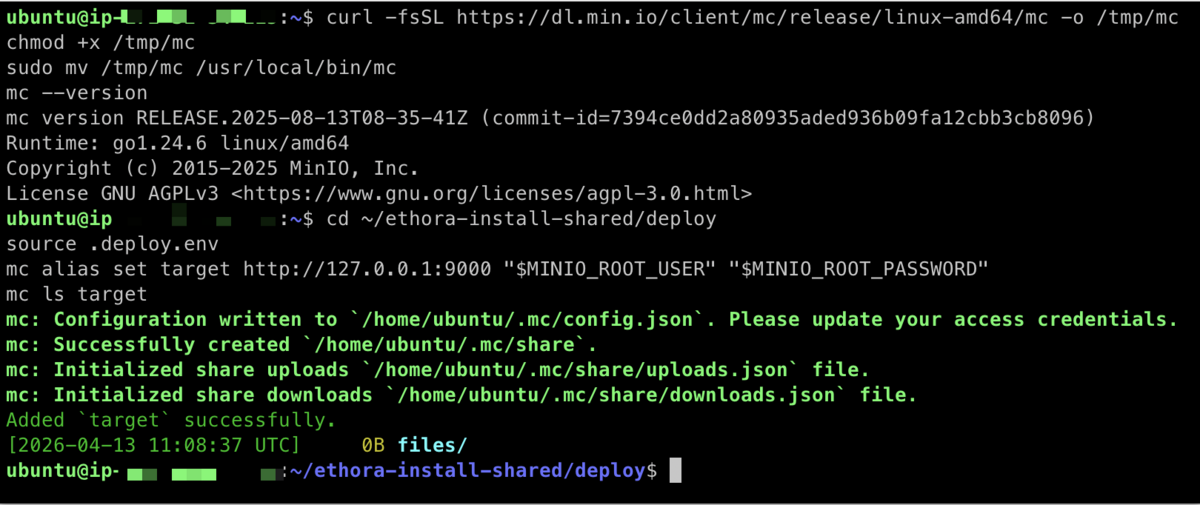
curl -fsSL https://dl.min.io/client/mc/release/linux-amd64/mc -o /tmp/mc
chmod +x /tmp/mc
sudo mv /tmp/mc /usr/local/bin/mc
mc --version

2. Configure the target MinIO alias

cd ~/ethora-install-shared/deploy
source .deploy.env
mc alias set target http://127.0.0.1:9000 "$MINIO_ROOT_USER" "$MINIO_ROOT_PASSWORD"
mc ls target

Default bucket in this deploy stack: files.

Example result:

CleanShot 2026-04-15 at 06.37.29@2x.png

3A. Configure the source alias directly

If the source MinIO API endpoint is directly reachable:

mc alias set source http://minio.example.com:9000 <SOURCE_MINIO_USER> <SOURCE_MINIO_PASSWORD>
mc ls source

If the source exposes MinIO API over TLS directly, use https://.

How to find out source minio user and password

docker ps --format 'table {{.Names}}\t{{.Image}}\t{{.Ports}}' | rg minio

You will see something like

apps-minio-1                         minio/minio:RELEASE.2023-07-21T21-12-44Z.fips   0.0.0.0:9000-9001->9000-9001/tcp, :::9000-9001->9000-9001/tcp

Then, run the below replacing <minio_container_name> with your container name, in our case it's apps-minio-1

docker inspect <minio_container_name> --format '{{range .Config.Env}}{{println .}}{{end}}' | rg '^MINIO_ROOT_(USER|PASSWORD)='

CleanShot 2026-04-15 at 06.47.46@2x.png

3B. Configure the source alias over SSH tunnel

If the public files host is behind Nginx, CDN, or another proxy and does not expose the raw MinIO API, tunnel to port 9000.

In one terminal or tab (Terminal 1) on the target server:

ssh -N -L 19000:127.0.0.1:9000 <SSH_USER>@<SOURCE_SSH_HOST>

Example:

CleanShot 2026-04-15 at 10.12.16@2x.png

Keep that tunnel running.

In another terminal or tab (Terminal 2) on the target server:

mc alias set source http://127.0.0.1:19000 <SOURCE_MINIO_USER> <SOURCE_MINIO_PASSWORD>
mc ls source

Example:

CleanShot 2026-04-15 at 10.16.37@2x.png

4. Mirror objects

In Terminal 2 on the target server (the one not running the tunnel):

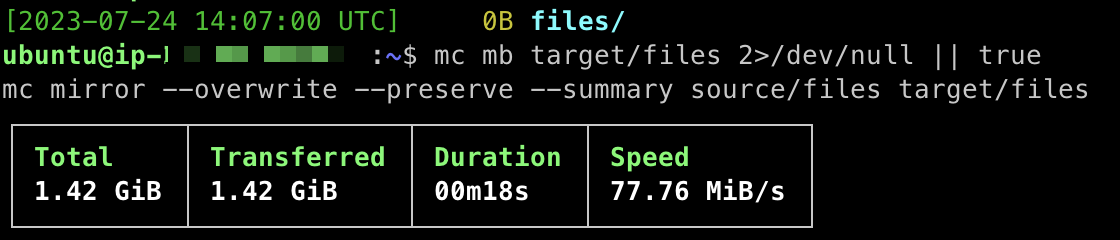
mc mb target/files 2>/dev/null || true
mc mirror --overwrite --preserve --summary source/files target/files

This preserves object keys so restored records in MongoDB and Ejabberd can continue to reference the same paths.

Example result:

CleanShot 2026-04-15 at 10.34.06@2x.png

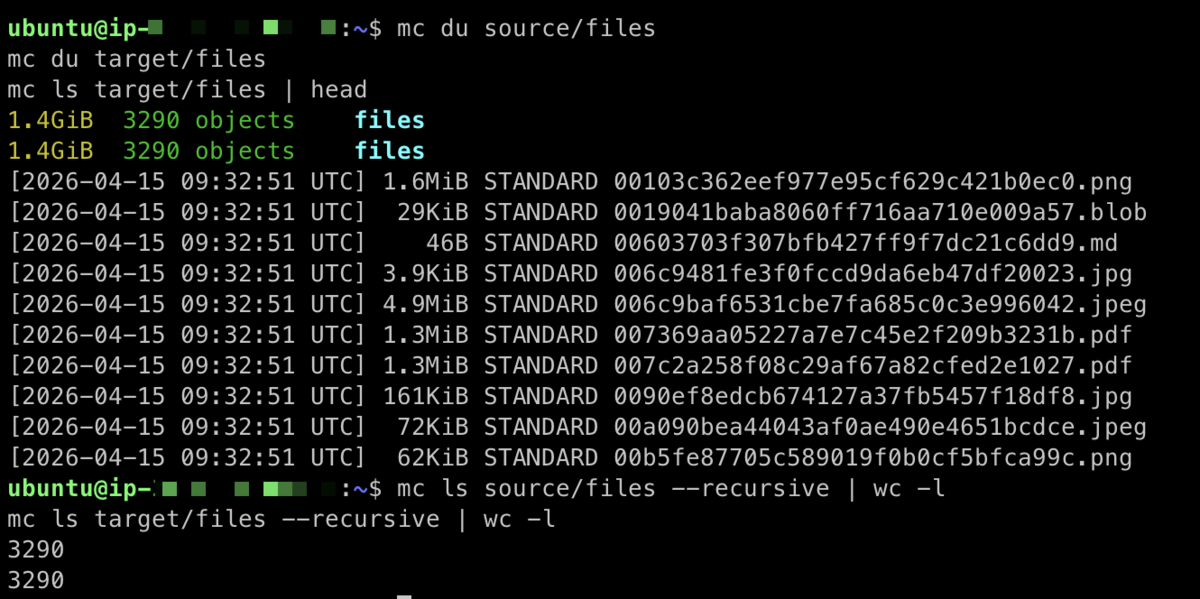
5. Verify

(target server)

mc du source/files
mc du target/files
mc ls target/files | head

optionally, you may also do a sanity check objects count comparison:

mc ls source/files --recursive | wc -l
mc ls target/files --recursive | wc -l

Example result:

CleanShot 2026-04-15 at 10.40.41@2x.png

Then test manually:

  • app logos

  • user profile images

  • old chat attachments

  • document or NFT file links, if used

6. If URLs still point at the old files host

If objects are present in the target bucket but the application still requests files.example.com instead of files.chat.example.com, you might need to run a URL rewrite script, but normally this would be not necessary.

Recommended order for a full stateful migration:

  1. Generate a migration pack with prepare-stateful-migration.sh.

  2. Restore MongoDB and Ejabberd snapshots.

  3. Mirror MinIO objects with mc.

  4. Run the generated mongo-post-restore.js.

  5. Retest logos and attachments.

Pgvector (AI db) migration

Export the DB (for old DP prod structure):

cd ~/APPS/dapprosplatform/ai_service

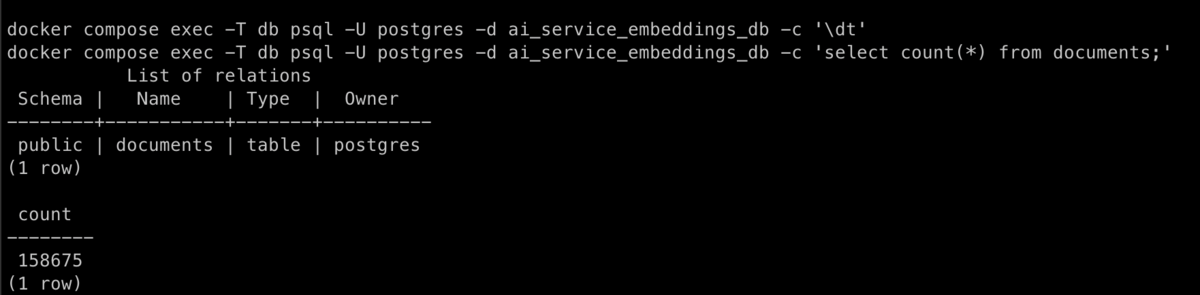
docker compose exec -T db psql -U postgres -d ai_service_embeddings_db -c '\dt'
docker compose exec -T db psql -U postgres -d ai_service_embeddings_db -c 'select count(*) from documents;'

Expected result:

CleanShot 2026-04-13 at 05.04.03@2x.png

If it looks good, export the dump:

cd ~/APPS/dapprosplatform/ai_service
TS=$(date -u +%Y%m%dT%H%M%SZ)
docker compose exec -T db pg_dump -U postgres -d ai_service_embeddings_db -Fc > "$HOME/ai_service_embeddings_${TS}.dump"
ls -lh "$HOME/ai_service_embeddings_${TS}.dump"

Expected result:

CleanShot 2026-04-13 at 05.07.05@2x.png

Then copy it to the new server (example):

scp "$HOME/ai_service_embeddings_${TS}.dump" ubuntu@NEW_SERVER:/tmp/

Old system migration

To migrate old system that does not have deploy and migration scripts installed:

  1. Export MongoDB, MySQL and pgvector dumps manually.

  2. Upload them to a workstation with deploy system installed (such as local Ubuntu machine with latest Ethora distribution installed)

  3. Prepare migration pack using prepare-stateful-migration.sh on your workstation

  4. Copy migration pack to target server with latest Ethora distribution installed

  5. Restore databases state from migration pack on the target server using instructions provided here

Shutting down old Ethora instance safely

Inspect First

Run these on old prod and save the output somewhere like ~/shutdown-snapshot/.

mkdir -p ~/shutdown-snapshot

date | tee ~/shutdown-snapshot/time.txt

hostnamectl | tee ~/shutdown-snapshot/hostnamectl.txt

uname -a | tee ~/shutdown-snapshot/uname.txt

PM2

pm2 list | tee ~/shutdown-snapshot/pm2-list.txt

pm2 jlist > ~/shutdown-snapshot/pm2-jlist.json

pm2 prettylist > ~/shutdown-snapshot/pm2-prettylist.json

pm2 report > ~/shutdown-snapshot/pm2-report.txt

For each important app, also capture details:

pm2 describe backend | tee ~/shutdown-snapshot/pm2-backend.txt

pm2 describe ai-service | tee ~/shutdown-snapshot/pm2-ai-service.txt

pm2 describe push | tee ~/shutdown-snapshot/pm2-push.txt

pm2 describe push-worker | tee ~/shutdown-snapshot/pm2-push-worker.txt

pm2 describe docs-parse | tee ~/shutdown-snapshot/pm2-docs-parse.txt

pm2 describe sdk-playground | tee ~/shutdown-snapshot/pm2-sdk-playground.txt

Docker

docker ps -a --format 'table {{.Names}}\t{{.Image}}\t{{.Status}}\t{{.Ports}}' | tee ~/shutdown-snapshot/docker-ps.txt

docker compose ls | tee ~/shutdown-snapshot/docker-compose-ls.txt

docker volume ls | tee ~/shutdown-snapshot/docker-volume-ls.txt

docker network ls | tee ~/shutdown-snapshot/docker-network-ls.txt

If you know the compose directory, also capture:

cd /path/to/deploy

docker compose config --services | tee ~/shutdown-snapshot/compose-services.txt

docker compose ps | tee ~/shutdown-snapshot/compose-ps.txt

Ports / system services

ss -ltnp | tee ~/shutdown-snapshot/listening-ports.txt

systemctl status nginx --no-pager | tee ~/shutdown-snapshot/nginx-status.txt

systemctl status pm2-* --no-pager | tee ~/shutdown-snapshot/pm2-systemd.txt

Safe Stop

Important: do not use pm2 delete, docker compose down, docker rm, docker volume rm, or any prune commands.

1. Save PM2 state

pm2 save

2. Stop PM2 apps

Safest:

pm2 stop all

Or stop only app processes first if you want infra to stay up:

pm2 stop backend ai-service push push-worker docs-parse sdk-playground

Verify:

pm2 list

3. Stop Docker containers safely

If services are compose-managed, from the compose directory:

cd /path/to/deploy

docker compose stop

If you have multiple compose files/projects, stop each one the same way.

If you must stop individual containers:

docker stop container_name_1 container_name_2

Verify:

docker ps -a

Safe Restart

PM2

If the machine was not rebooted:

pm2 restart all

If PM2 lost process memory or after reboot:

pm2 resurrect

pm2 list

Docker

If you used docker compose stop:

cd /path/to/deploy

docker compose start

If needed:

docker compose up -d

Recommended Cutover Order

  • Lower DNS TTL before cutover.

  • Put old prod into maintenance/read-only mode if possible.

  • Take final MySQL and Mongo dumps.

  • Stop PM2 writers/app services first.

  • Stop Docker app/infra only when you are sure exports are complete.

  • Restore DBs on new prod.

  • Validate new prod on hosts-file or direct URL first.

  • Switch DNS from app.olddomain.com to app.chat.newdomain.com

Have a question about this? Ask the Ethora team.